



Acer 170MB/s SD Card Reader with USB-C & Type-A 3.0, Dual Slot
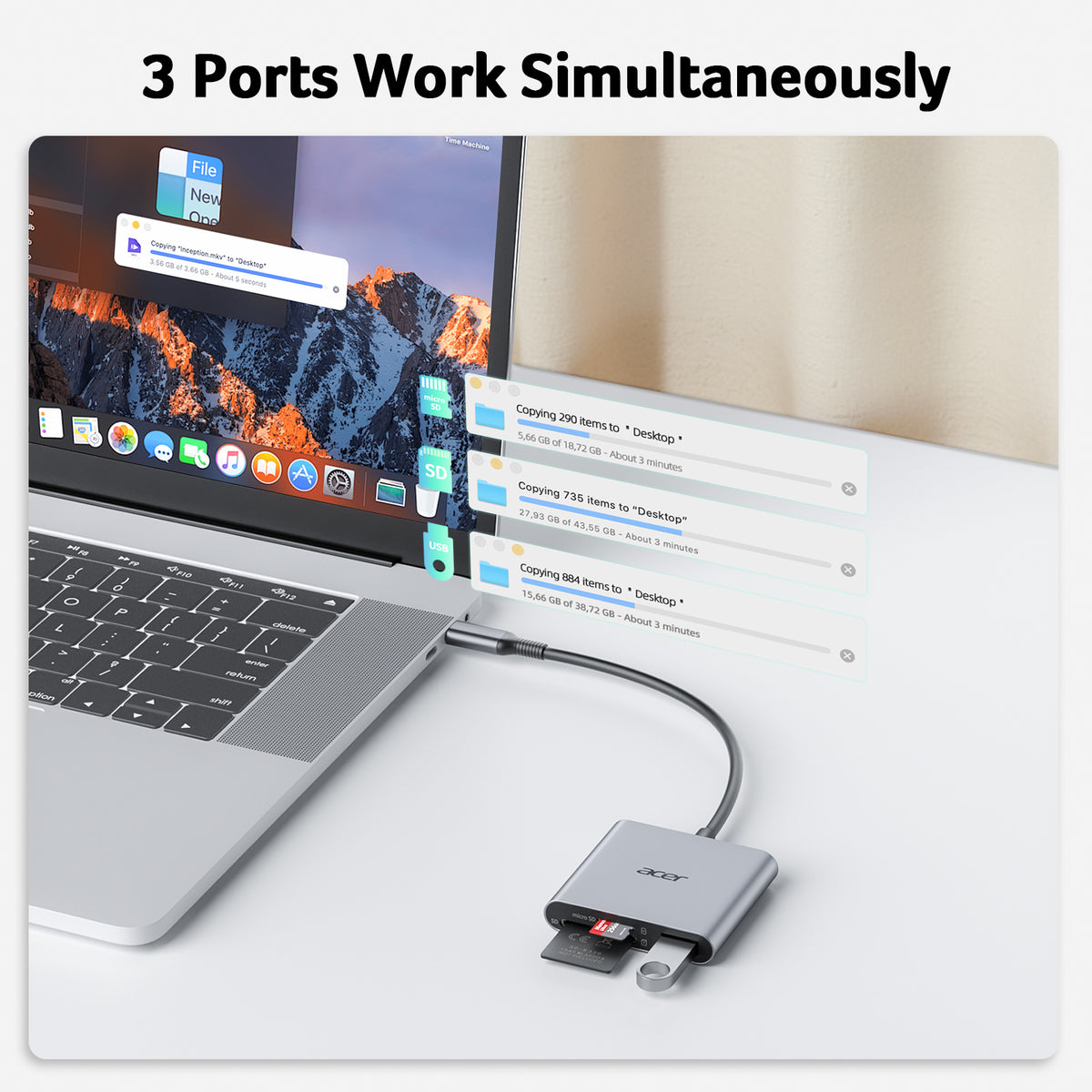
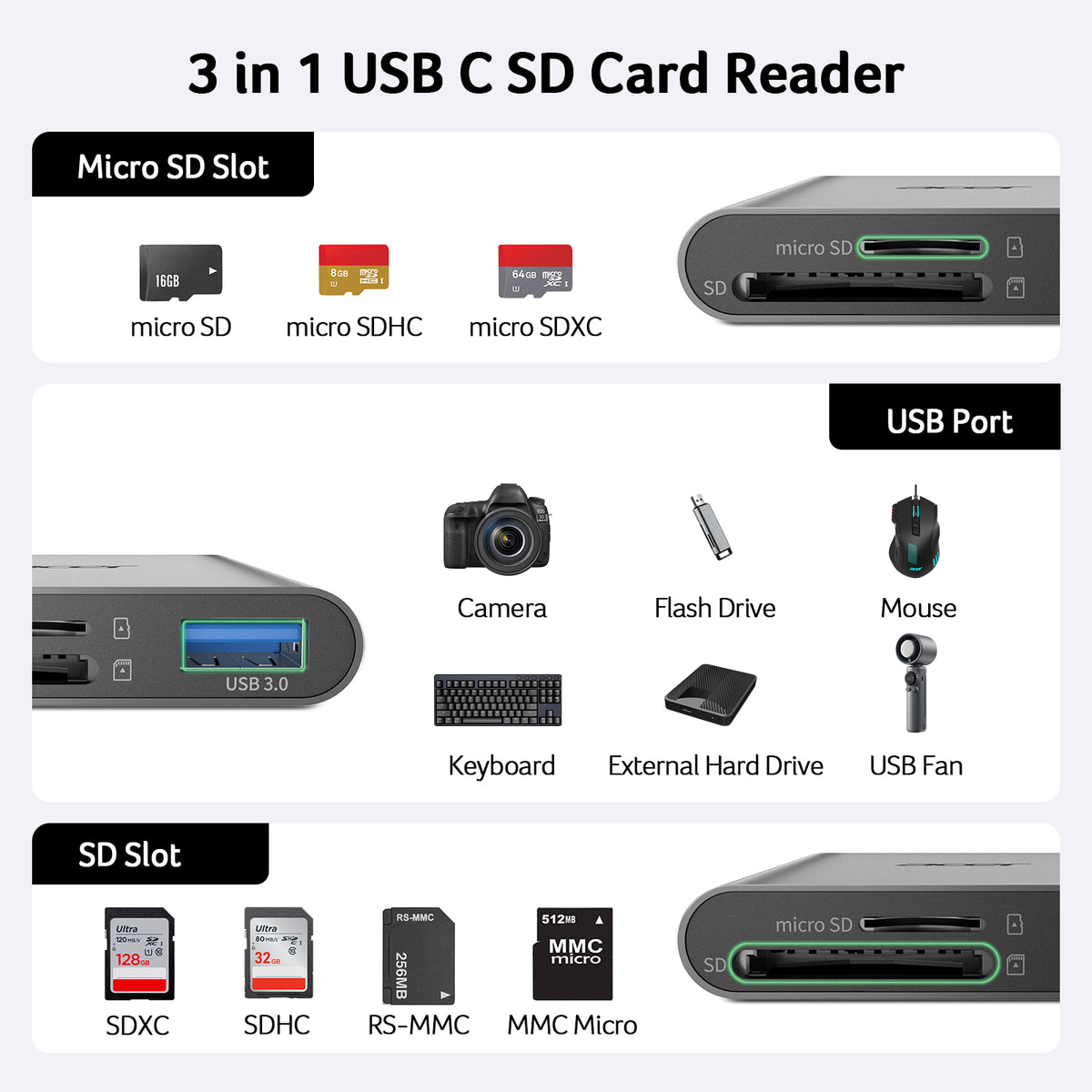
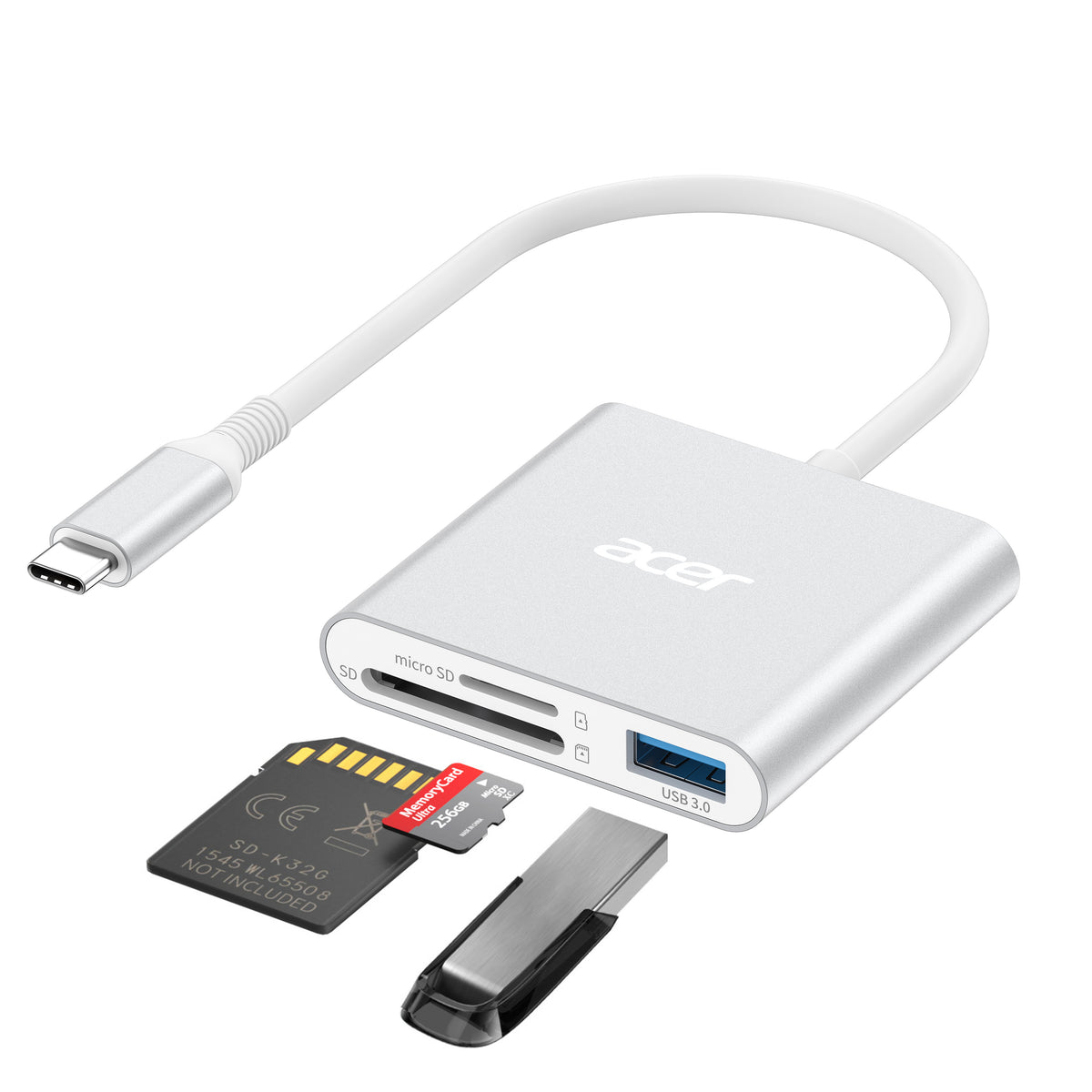
- 3-in-1 Card Reader – Dual SD/MicroSD slots + USB 3.0 port, all at 5Gbps. Transfer photos, videos, and files simultaneously – no device swapping. (Thick cases may prevent full insertion.)
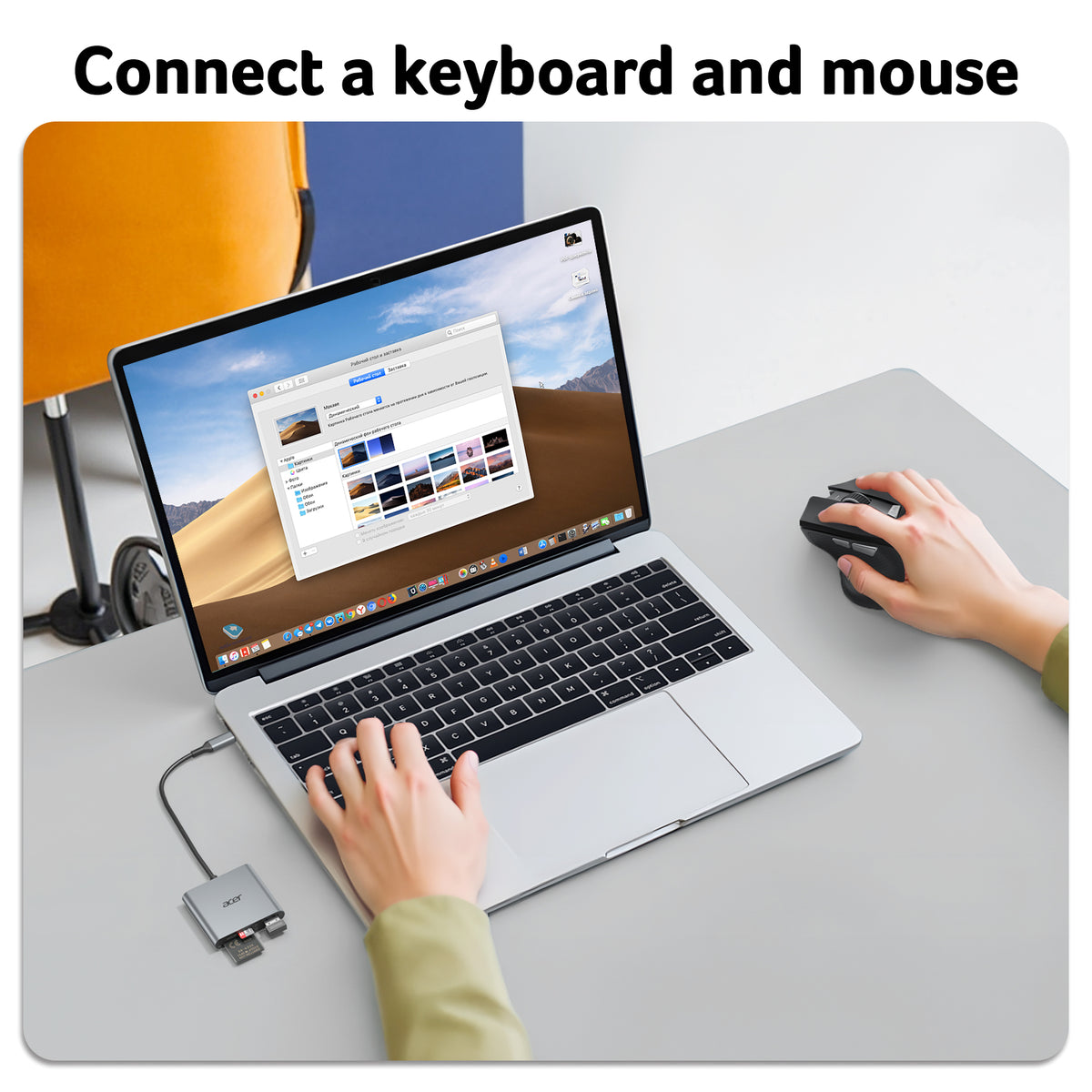
- Versatile USB 3.0 Port – Connects USB-A devices like wireless mouse/keyboard receivers. High-speed data transfer ready. (Not for Lightning or USB-A host ports.)
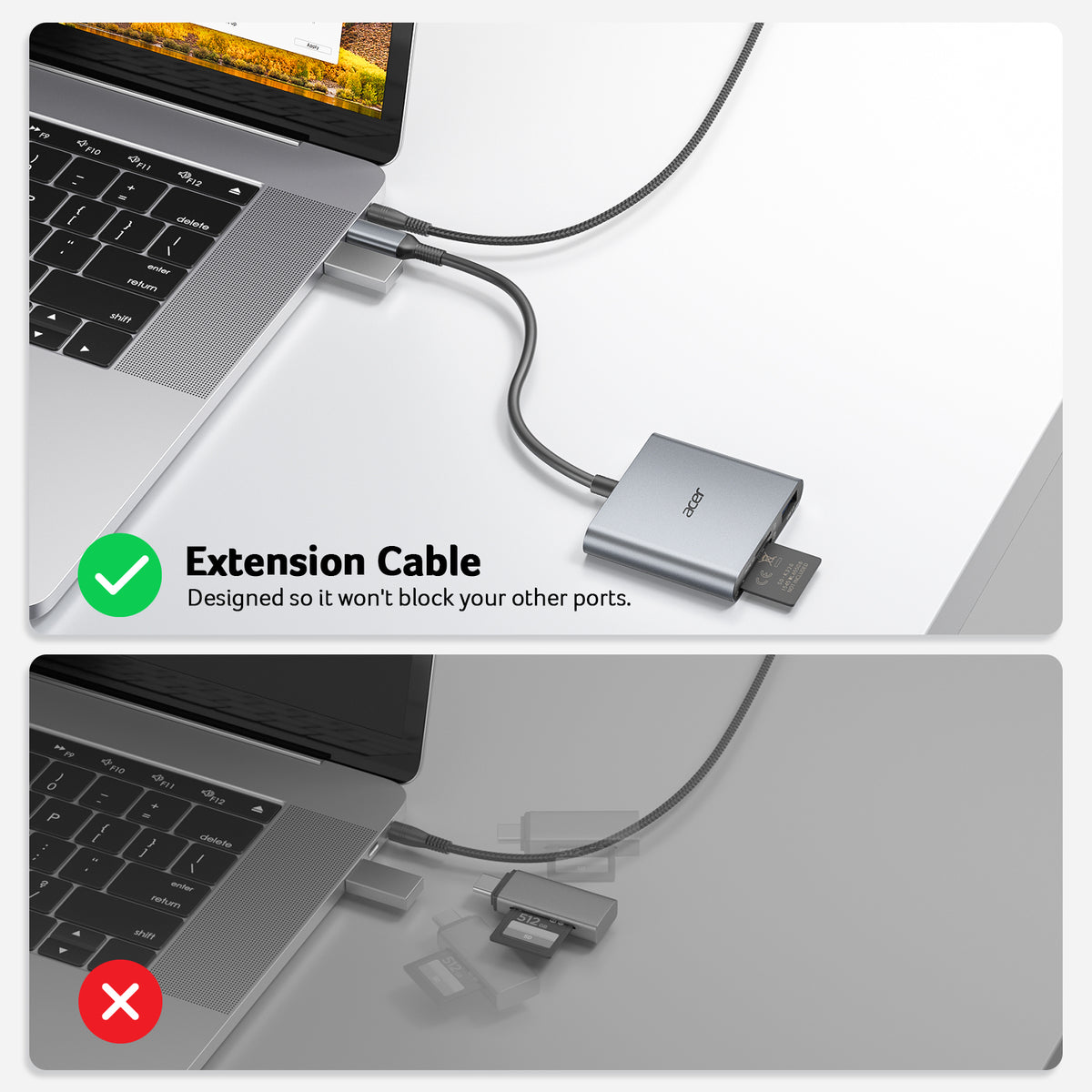
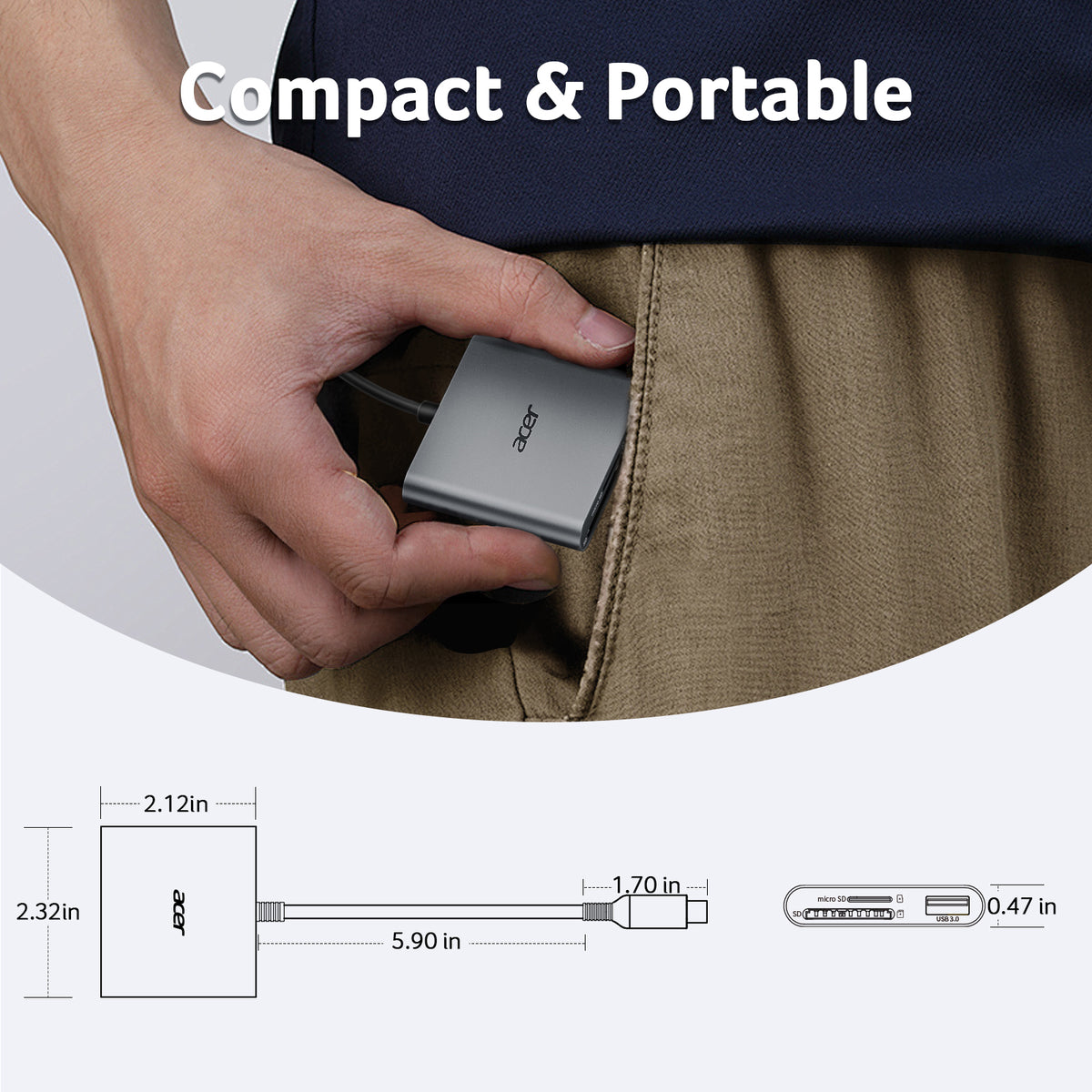
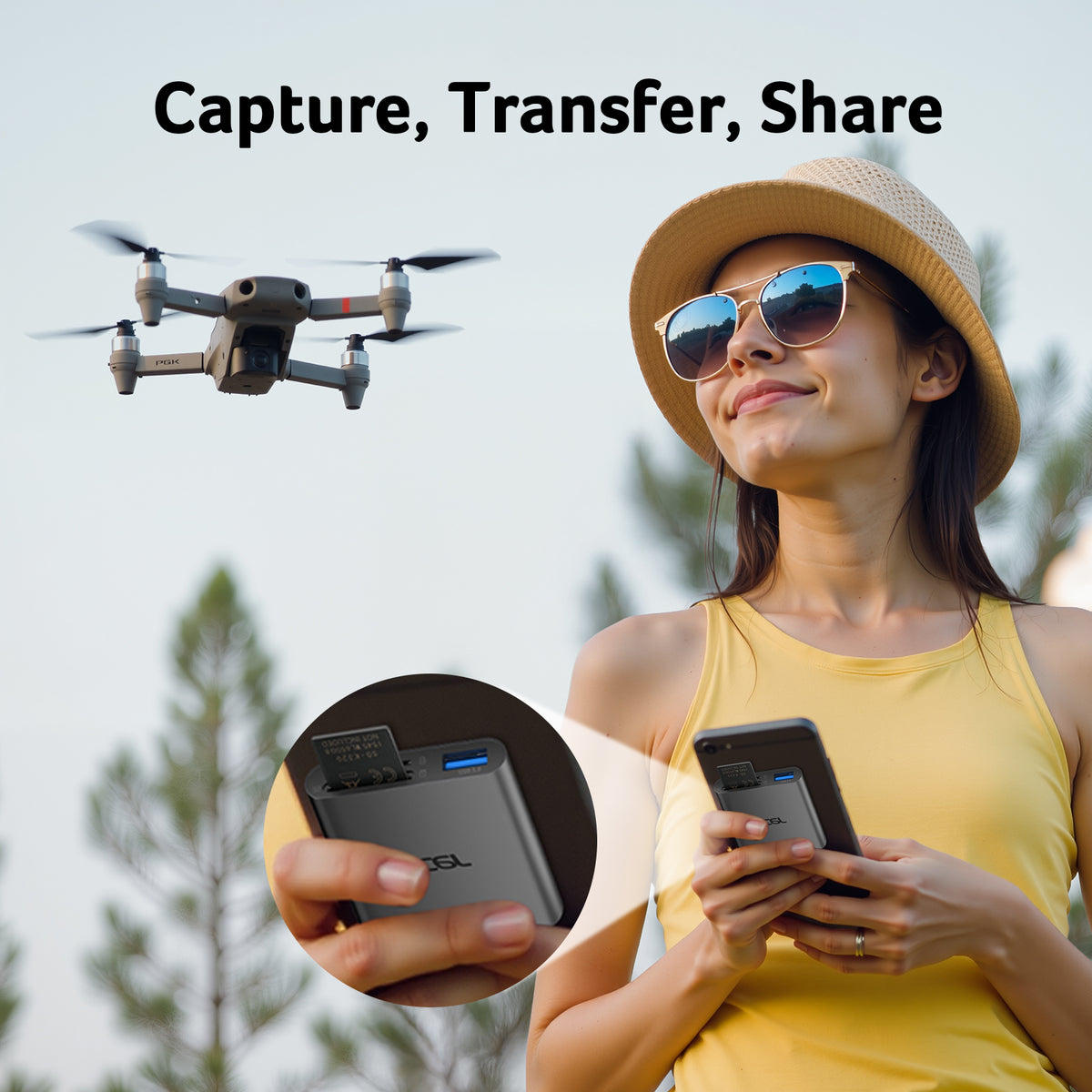
- Heat-Resistant & Portable – Aluminum shell for heat dissipation and stable transfers. Compact, lightweight, with 15cm cable. Ideal for travel, remote shoots, or mobile work. (Cards not included.)
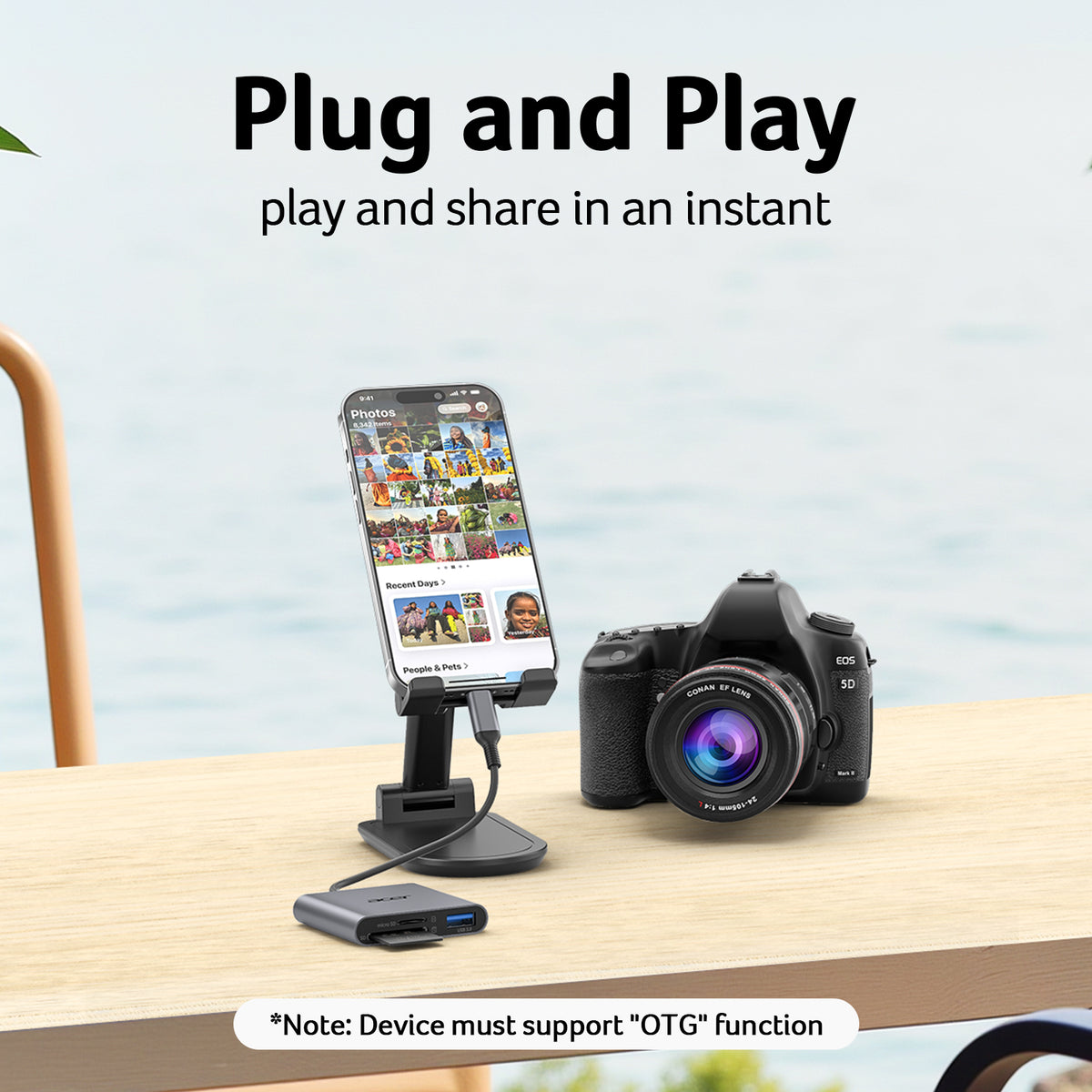
- Plug & Play – No drivers needed. Connect to USB-C port and start transferring instantly. Works with laptops, tablets, and compatible smartphones. (SD slot does not support CF, MS, XQD, UHS-II, SDUC, or Type A/B/C cards.)
- Wide Compatibility – Supports SD/MicroSD, SDHC, SDXC, and UHS-I cards. Works with iPhone 15/16/17, MacBook Neo/Pro/Air, and USB-C devices. Compatible with Windows, macOS, Chrome OS, Linux. (Reads from SD/TF cards only – not direct camera connection.)
- Media Type: SD Card, microSDXC, SDXC, UHS-I Cards, microSD, 【✕ Not Type A/B/C, CF, MS, Compact Flash, SDUC, UFS, Credit, XQD and UHS-II Cards】
- Connectivity Technology: USB Type C, 【✕ Not USB-A/Lightning】
- Additional Features: Aluminum, Compact, Easy Setup, Plug & Play
- Compatible Devices: Camera, Desktop, Laptop, Smartphone, Tablet
- Data Transfer Rate: 5 gigabits per second
- Hardware Interface: USB 3.0 Type C, USB 3.1 Type C, USB Type C
- Slot Count: 3
- Operating System: Android, Chrome OS, Linux, Windows, macOS
- Item Dimensions L x W x H : 2.32"L x 2.12"W x 0.47"H
- Item Weight: 65 g


FAQ
Incompatible devices
1. Devices that do not support the "Lightning" and "USB-A"interface (✕)
2. NoT support for charging-only USB-C ports (✕)
3. Some SD/TF cards with encryption or special formats (such as camera-specific formats) (✕)
4. Android phones and tablets that do not support OTG function (OTG support can be checked in settings or official specifications) (✕)
What to do if the card reader does not work?
1. Make sure the card is inserted in the correct orientation
2. Devices that support the OTG function, enable OTG on your device and find the SD card in the settings.(Older devices or systems may take around one minute to recognize the device.)
How to find files on SD Card on iPhone?
Insert the SD card into the reader > plug the device card reader into thhe iPhone(TYPE-C) > click on the "FILES" app > click on iCloud Drive's "Browse" > click on Browse's SD card name>Now you can view your files from your SD card on "Your SD card name"
How to easily insert and remove the card?
Insert the micro SD first, then the SD. To remove, take out the SD first, then the micro SD — it’s easier this way.
Data transfer speed is slow?
Data transfer rates are subject to the speed of the memory card itselfand your computer's USB-C ports.The SD card reader is USB 3.0 version, the theoretical of USB-C port transfer speed is 5Gbps; for micro SD/SD slot, theoretical speed is UHS-I (104MB/s)


