


Acer 5Gbps USB-C/USB-A Connector SD Card Reader Dual Slot
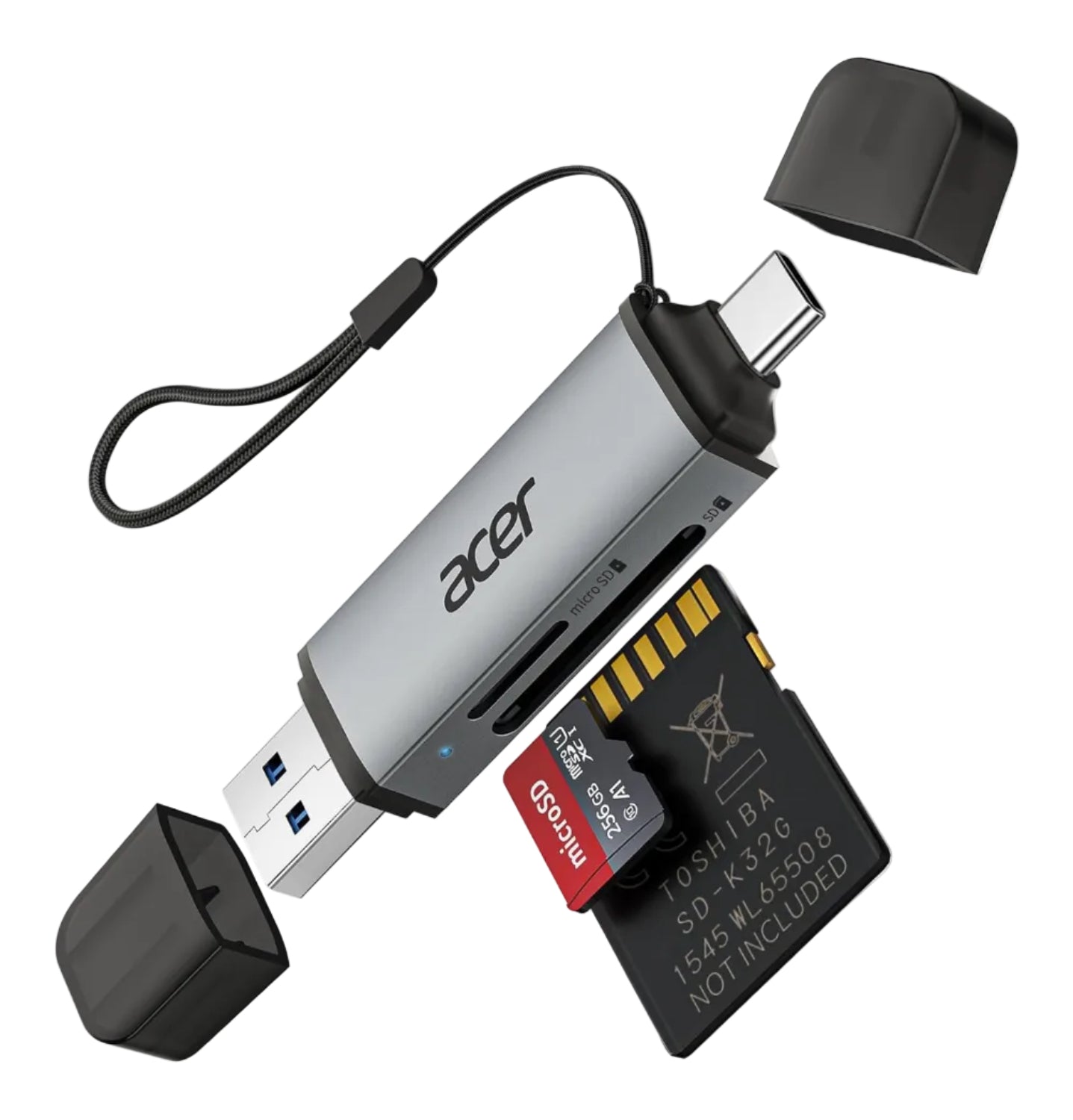
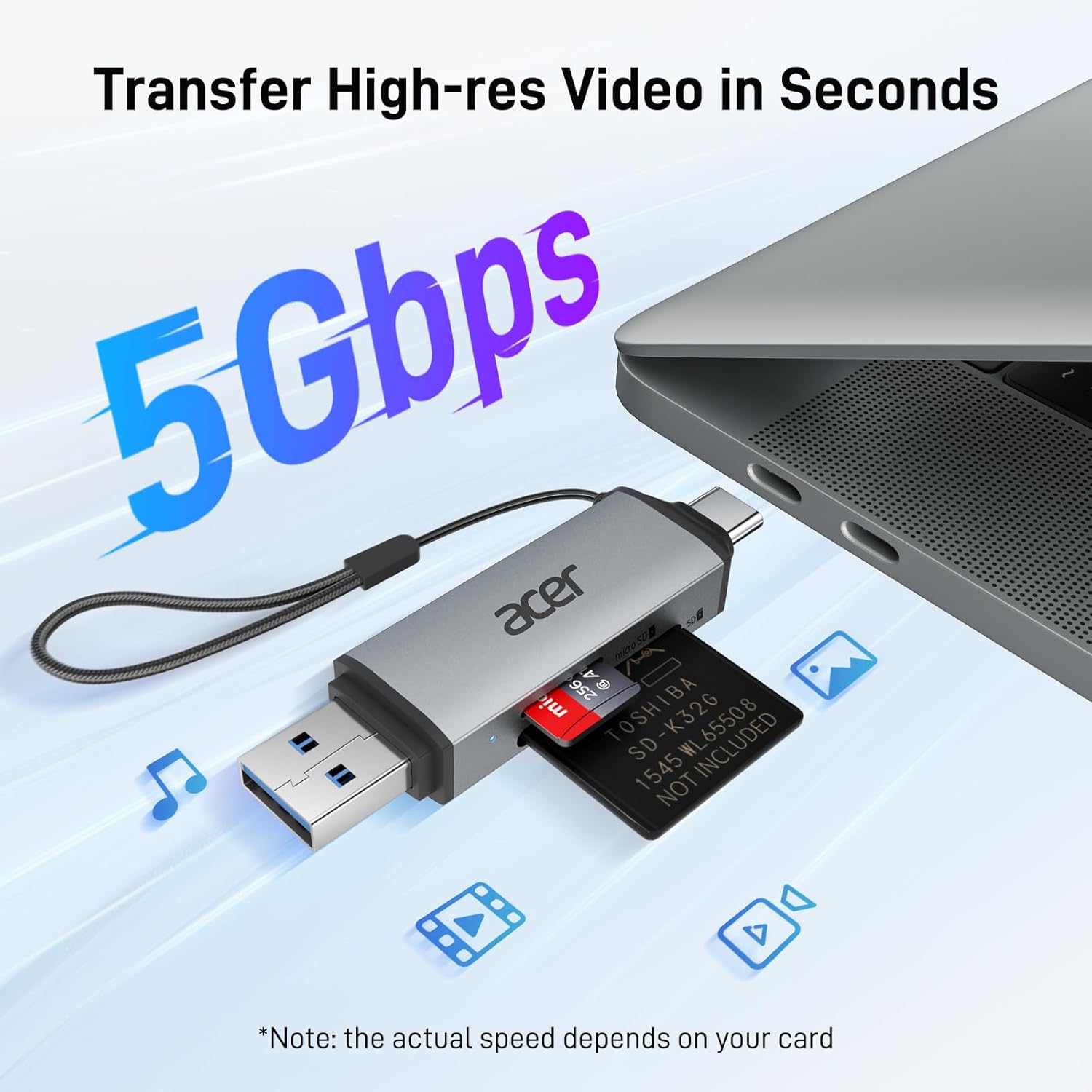
- Ultra-Fast 5Gbps Transfer – Blazing-fast 5Gbps data transfer for photos, videos, and media. Backward compatible with USB 2.0. Easily review/transfer from security cams, wildlife monitors, car cams, or GoPro. (Reads from SD/TF cards only – not direct camera connection.)
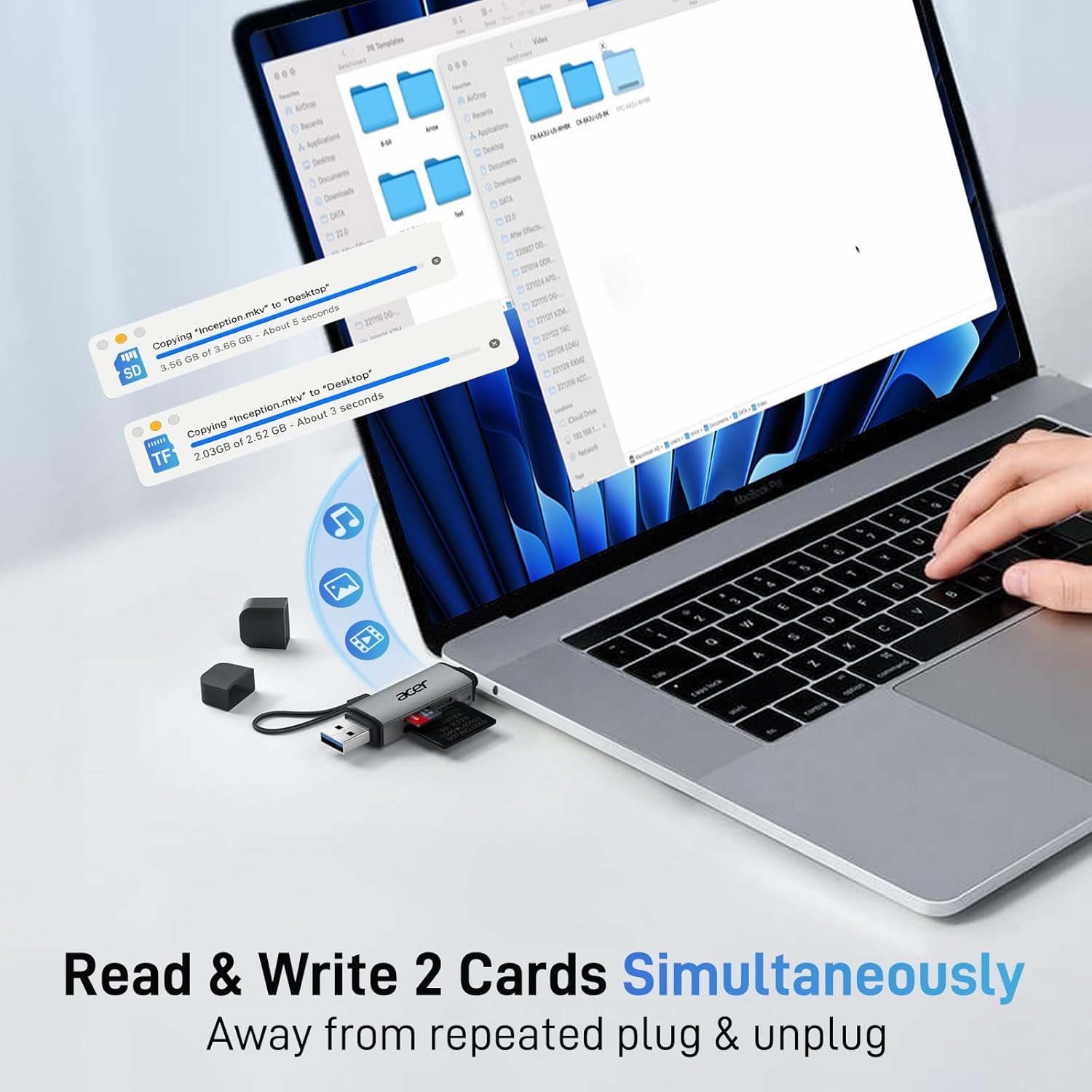
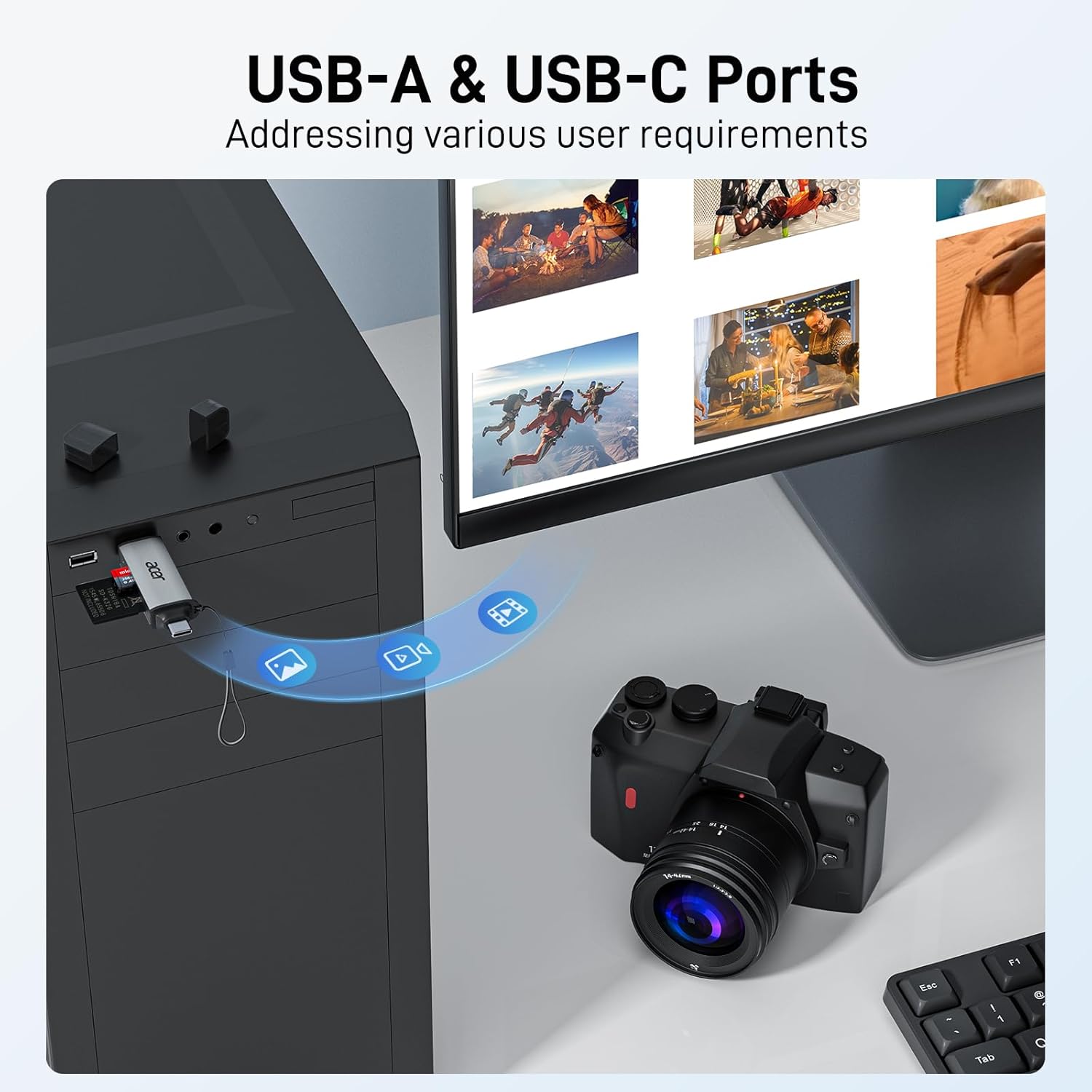
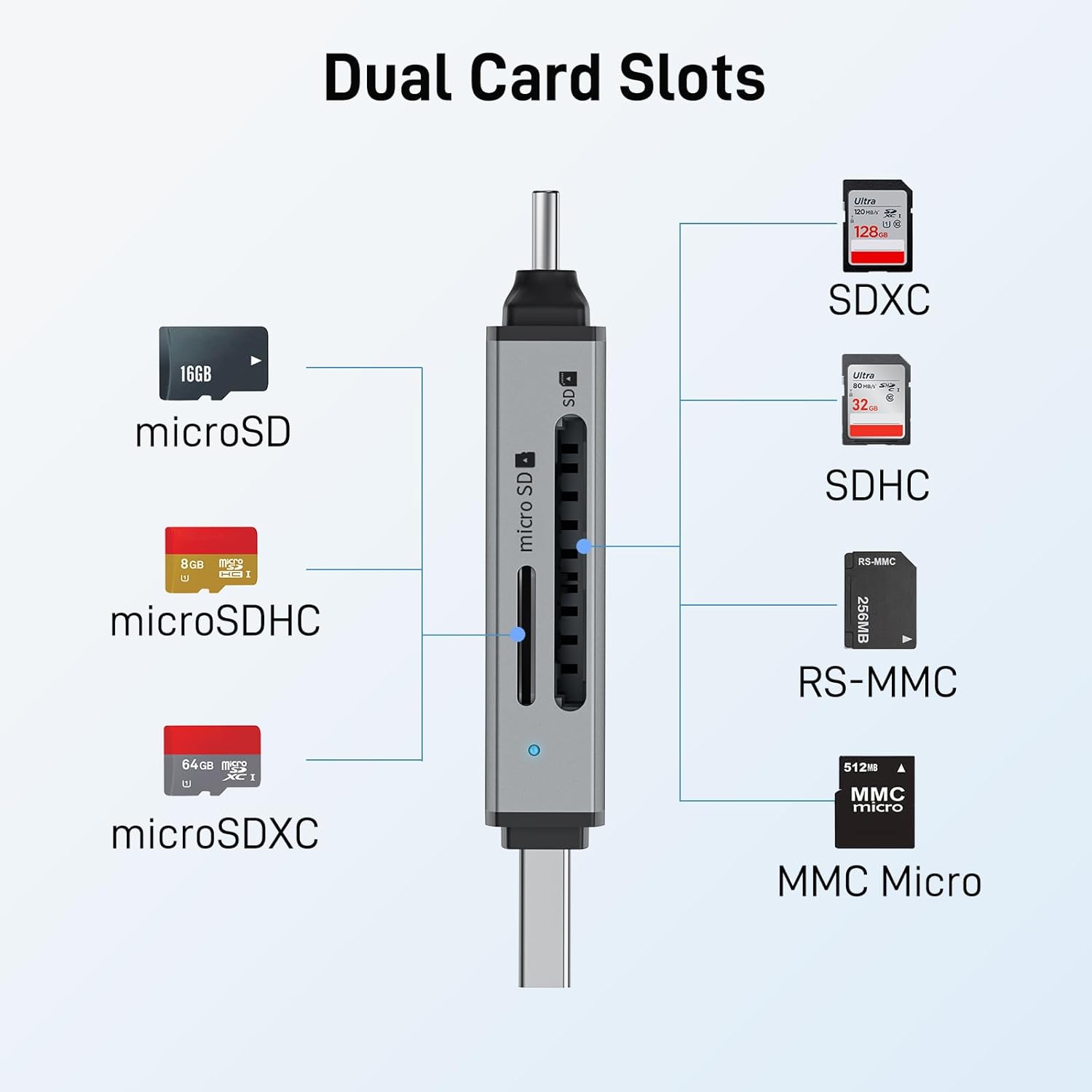
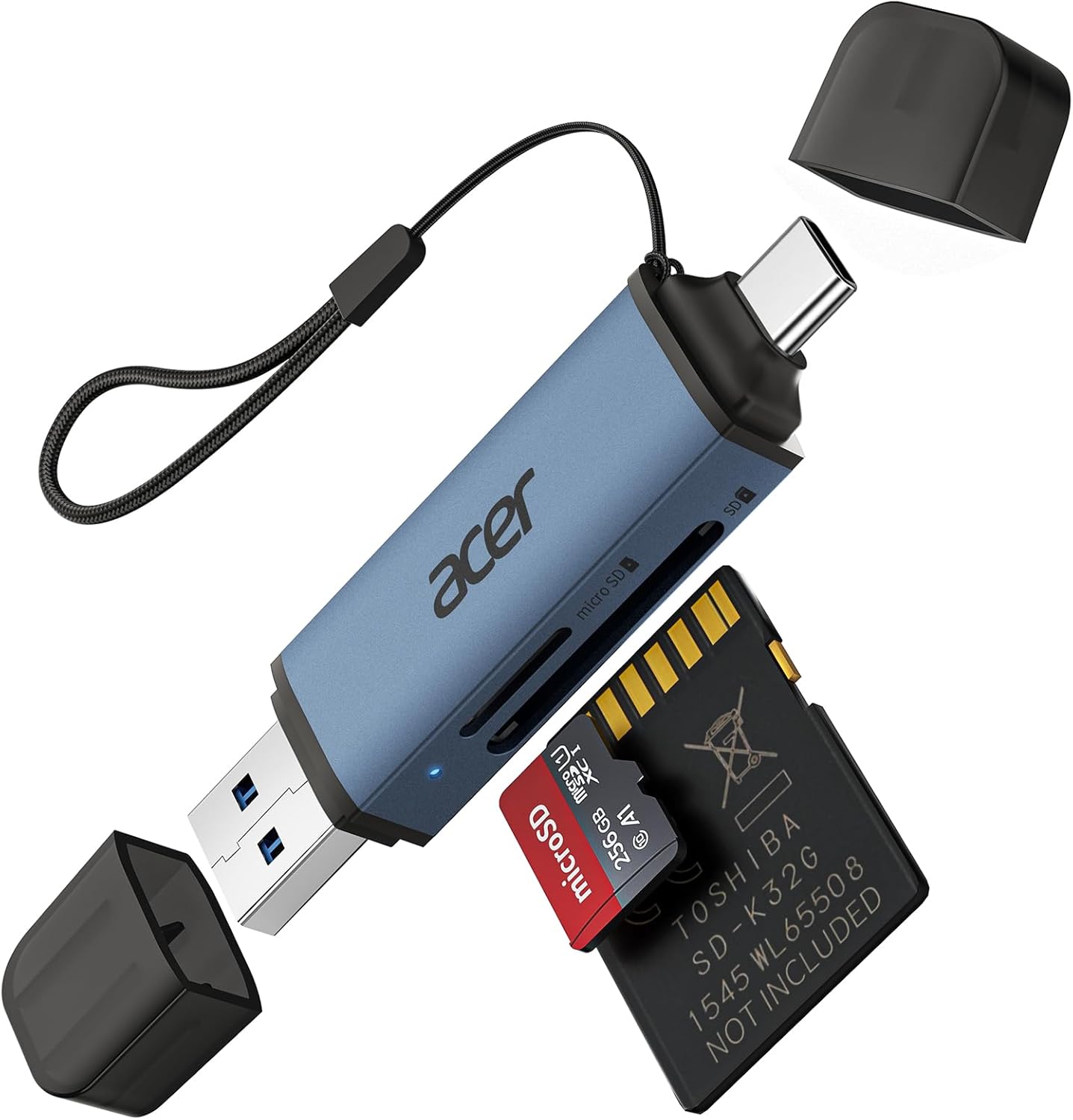
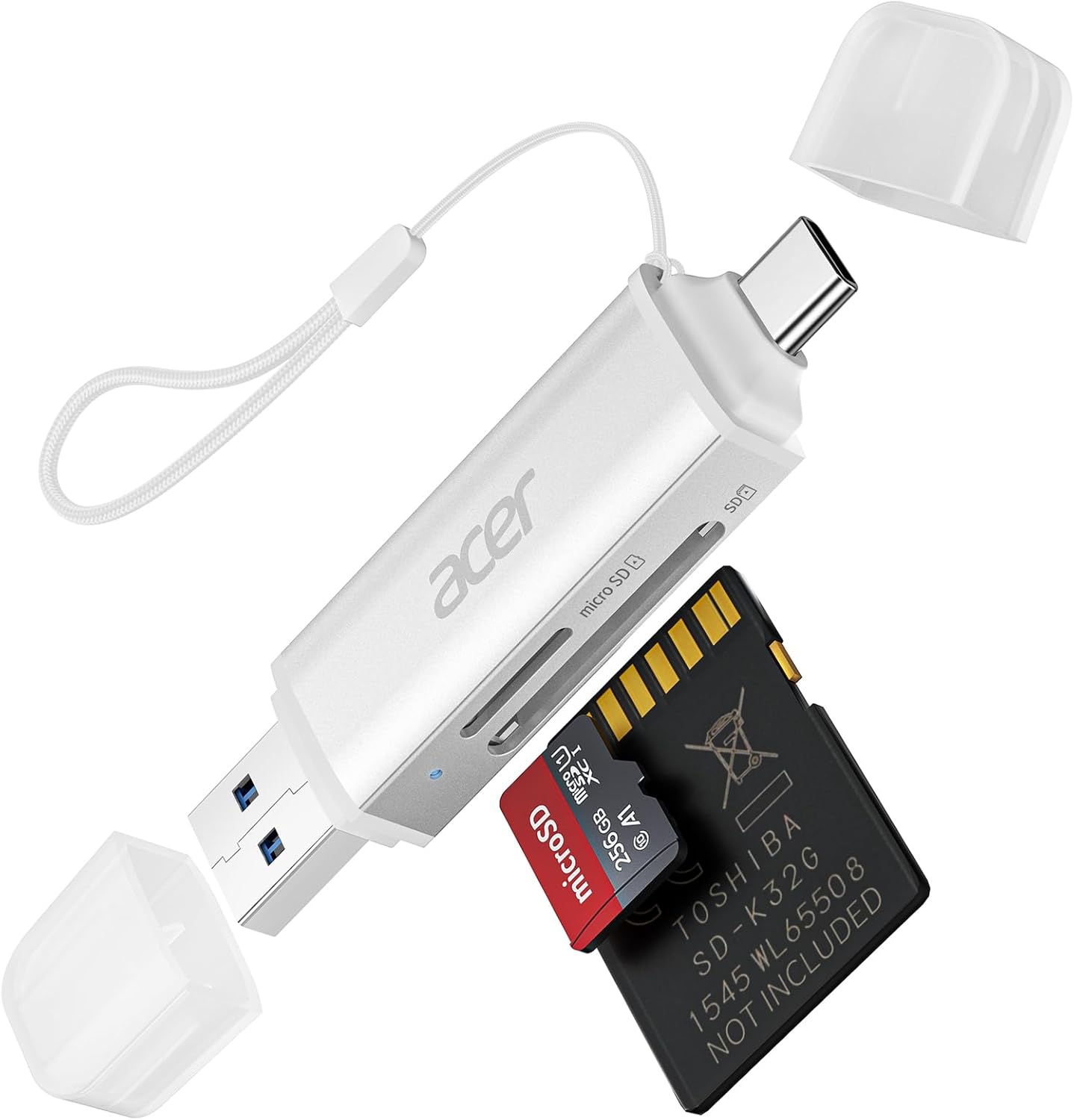
- Dual-Card Simultaneous Read/Write – Read and write on both microSD and SD cards at once. Dual USB-A and USB-C connectors – perfect for photographers and video editors. (Thick cases may prevent full insertion.)
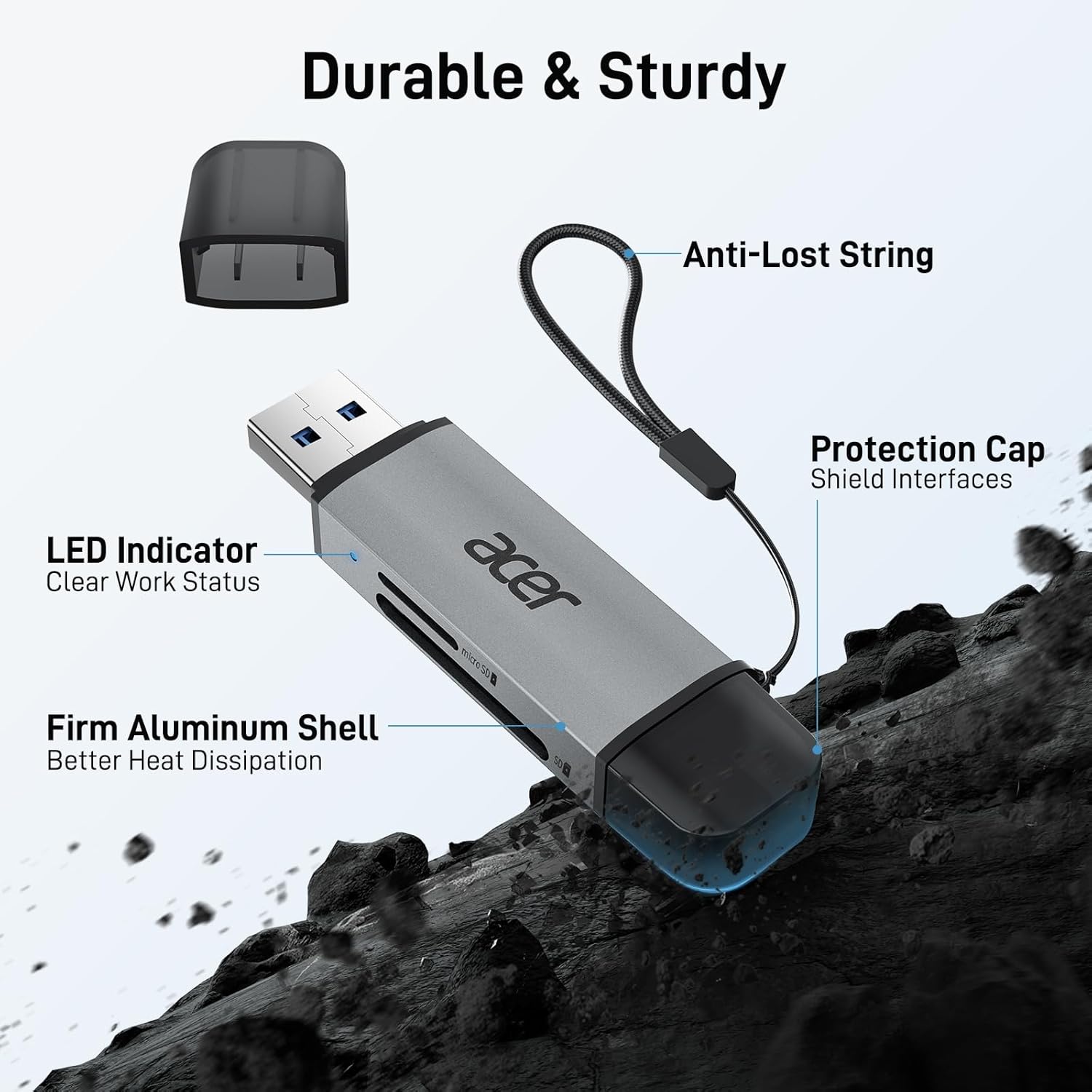
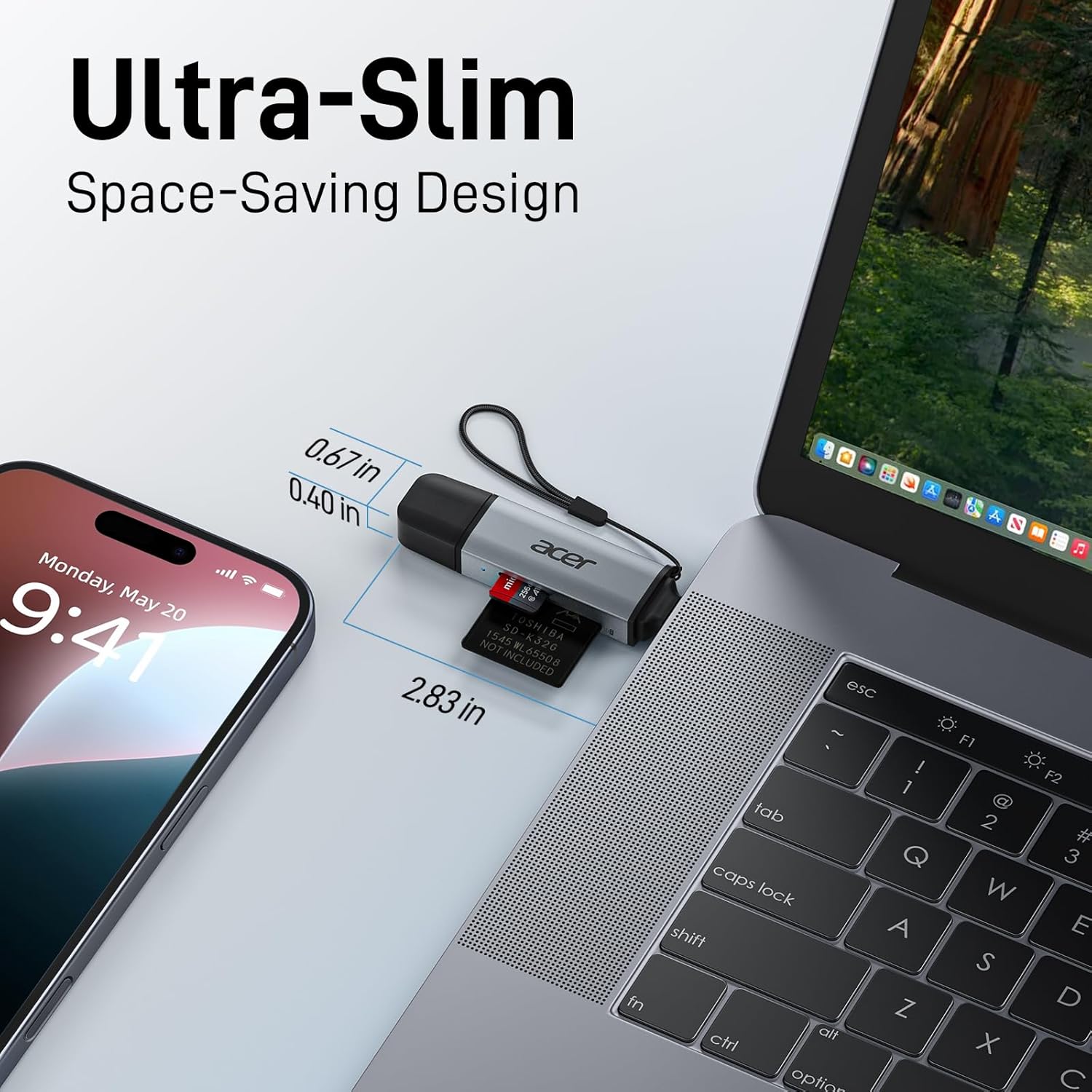
- Compact & Travel-Friendly – Slim, lightweight design fits in camera bags or laptop sleeves. Protective port covers shield from dust/liquids; attached cord keeps it secure. (Cards not included.)
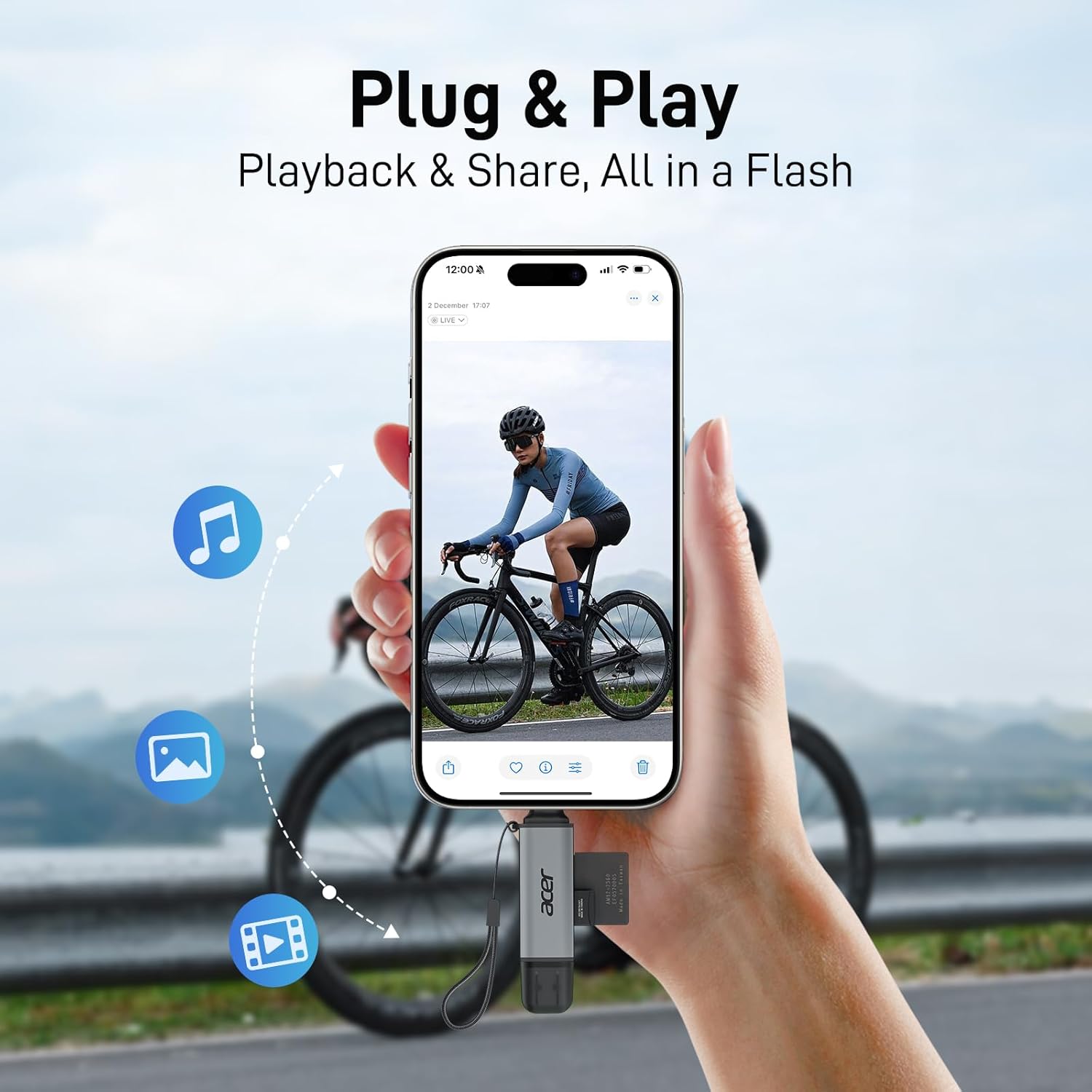
- Plug & Play – No Drivers – No software needed – just plug in and transfer. Compatible with Windows 11/10/8/7, macOS, and Android. Aluminum build for heat resistance and durability. (Not for CFexpress Type A/B/C, SIM, XQD, MS, or Memory Stick.)
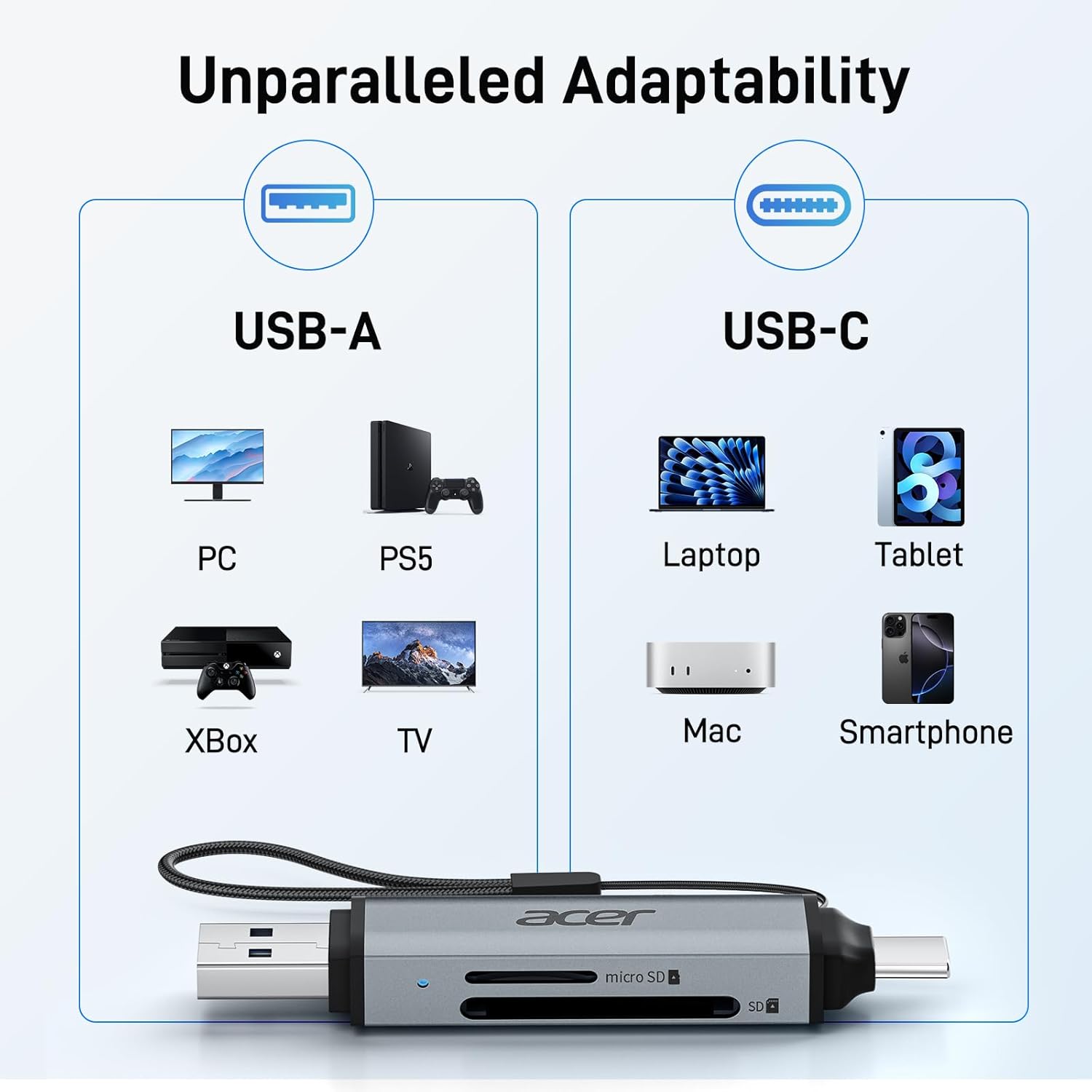
- Wide Compatibility – Works with PCs, laptops, cameras, smartphones, and tablets via USB-C or USB-A – MacBook Air/Pro, XPS, iPhone 15/16, iPad Pro, Galaxy S23, Surface, Acer Aspire/Predator, and more. (Not for Lightning port devices.)
- Media Type: SD Card, SDXC, microSD, microSDHC, microSDXC
- Connectivity Technology: USB Type A, USB Type C
- Additional Features: Compact, Dust Proof, Easy Setup, Plug & Play
- Compatible Devices: Camera, Desktop, Laptop, Smartphone, Tablet
- Data Transfer Rate: 5 gigabits per second
- Hardware Interface: USB 3.0, USB 3.0 Type A, USB 3.0 Type C
- Slot Count: 2
- Operating System: Android, Chrome OS, Linux, Windows, macOS
- Item Dimensions:2.8"L x 0.7"W x 0.4"H
- Item Weight: 35g


FAQ
What devices and memory cards are compatible with this SD card reader?
This card reader is designed for compatible devices with USB-A/USB-C connectivity and OTG support, depending on the model. Android phones and tablets must support OTG functionality. Some encrypted SD/TF cards or cards using special camera-specific formats may not be recognized.
How can I access files from an SD card on my USB-C iPhone?
Insert your SD card into the card reader, then connect the reader to your USB-C iPhone. Open the Files app, tap Browse, and select the name of your connected SD card to view and access your files.
Why isn't my SD or MicroSD card being recognized?
First, make sure the card is inserted correctly, the indicator light is on, and the card's metal contacts are clean. For Android devices, make sure OTG is enabled if required. If the card is still not recognized, try reconnecting the reader or testing another compatible card or device.
Why is my file transfer speed slower than expected?
Actual transfer speed depends on the memory card, computer/device, and USB port being used. The reader uses a USB 3.0 interface with up to 5Gbps theoretical USB-A transfer speed, while the SD/MicroSD slots support UHS-I with theoretical speeds up to 104MB/s. Actual speeds may be lower depending on your equipment and file type.
Why do I get an error when transferring large files?
The error may be related to the memory card's file system or format. For large-file transfers, make sure the card uses a format supported by your device, such as FAT32 or exFAT. Please back up important files before formatting. On macOS, NTFS drives are generally read-only by default, so writing files to an NTFS-formatted card may require additional software.


