

Acer 7-in-1 USB-C Hub | 4K@60Hz HDMI, 5Gbps Data, SD/MicroSD, 100W PD
-
7-IN-1 Multi-Port USB C Hub
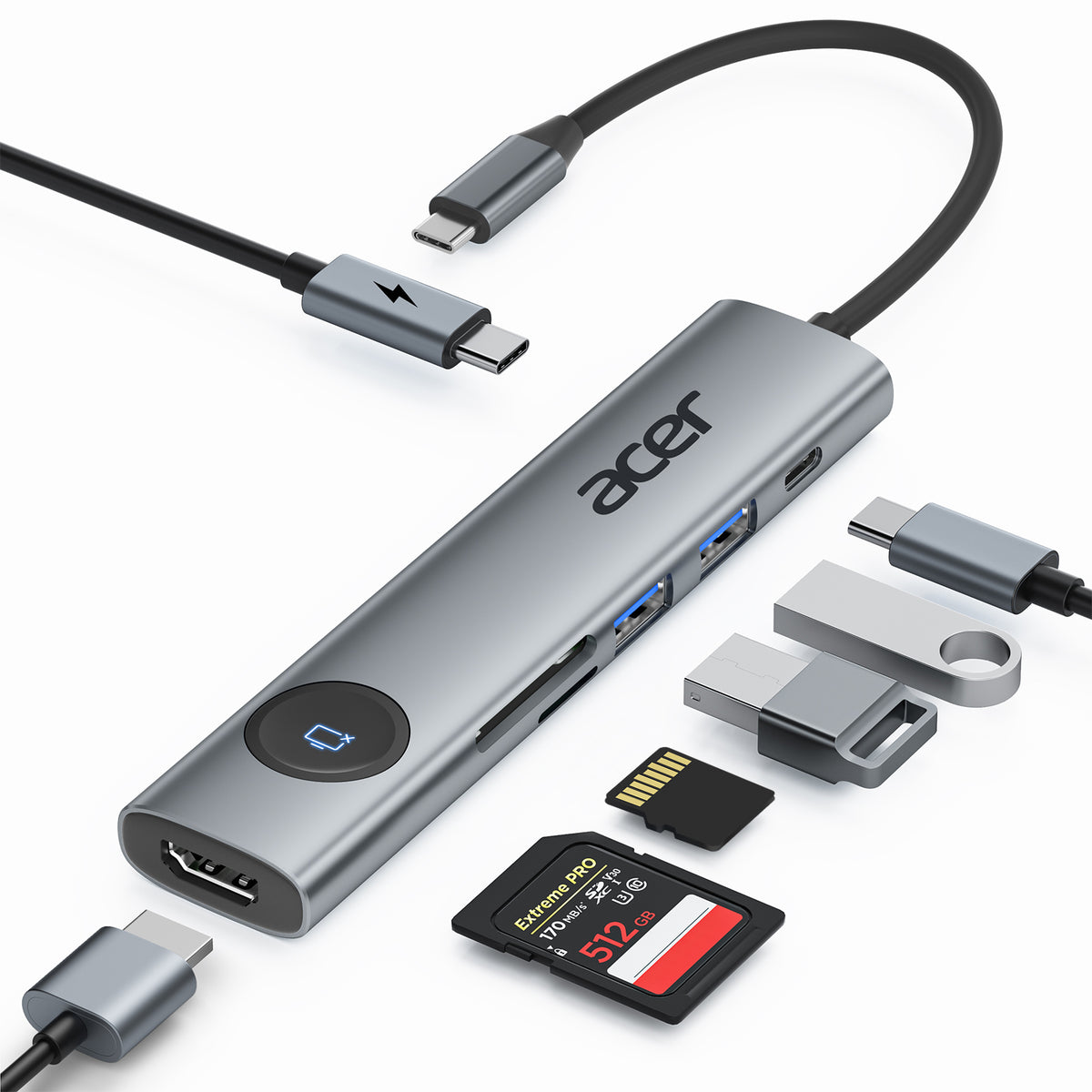
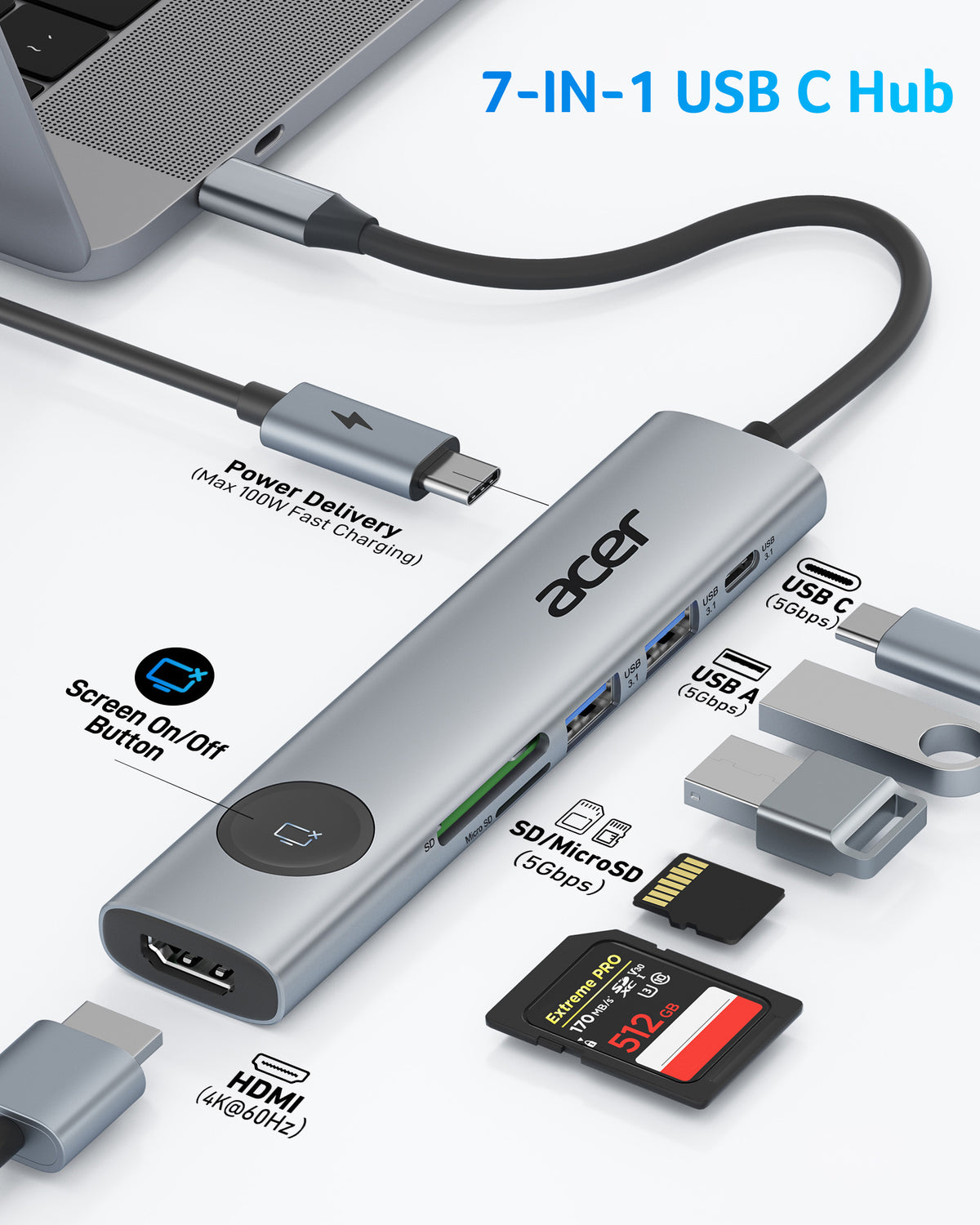
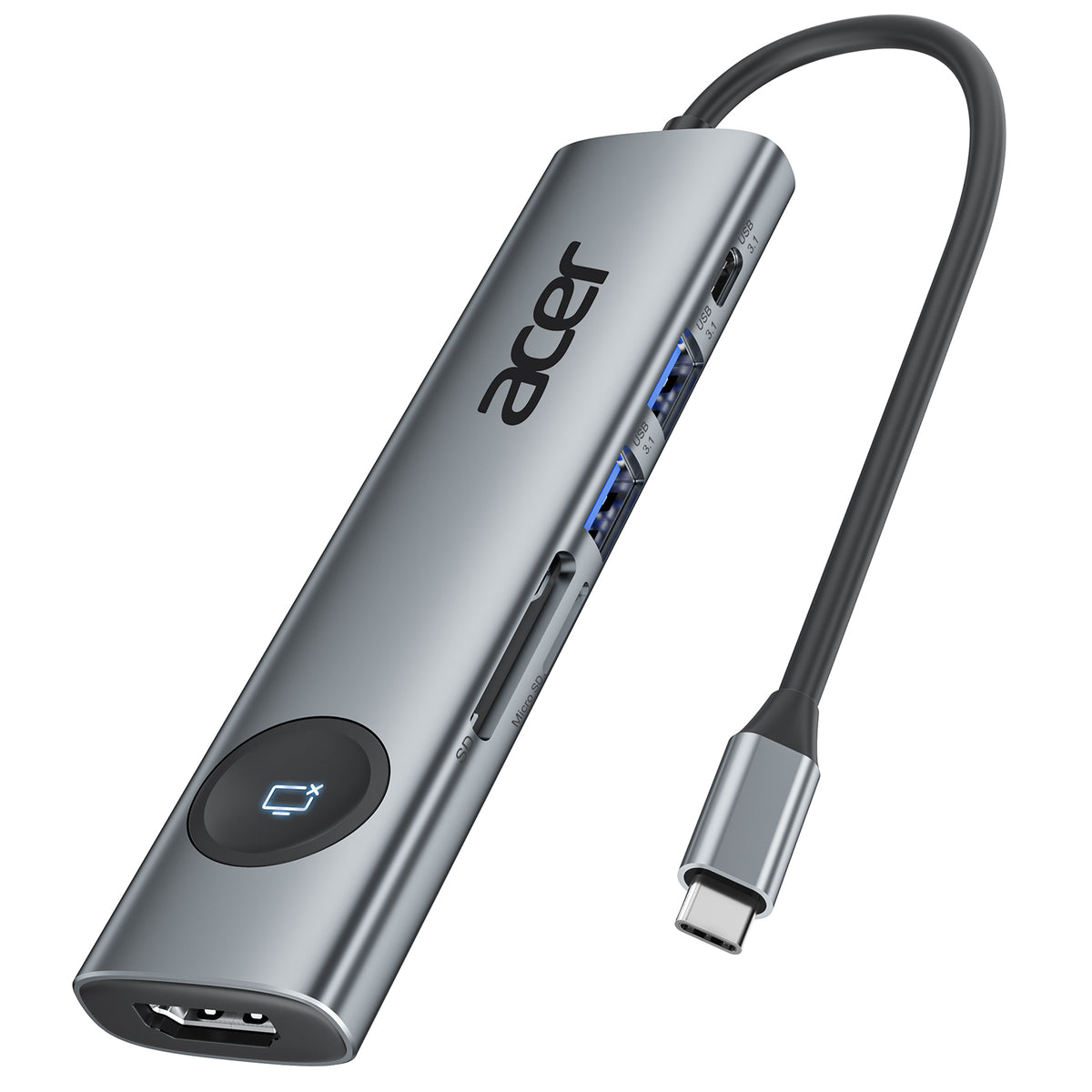
Acer USB C Hub expands a single USB-C port to 7 ports (1*HDMI 4K@60Hz, 2*USB 3.1 & 1*USB-C Data Ports, 1*Type-C PD charging, MicroSDTF + SD card slots). This USB C Adapter with 7 ports can entirely meet your work from home, office, or on the go.
-
4K@60Hz Crystal-Clear HDMI
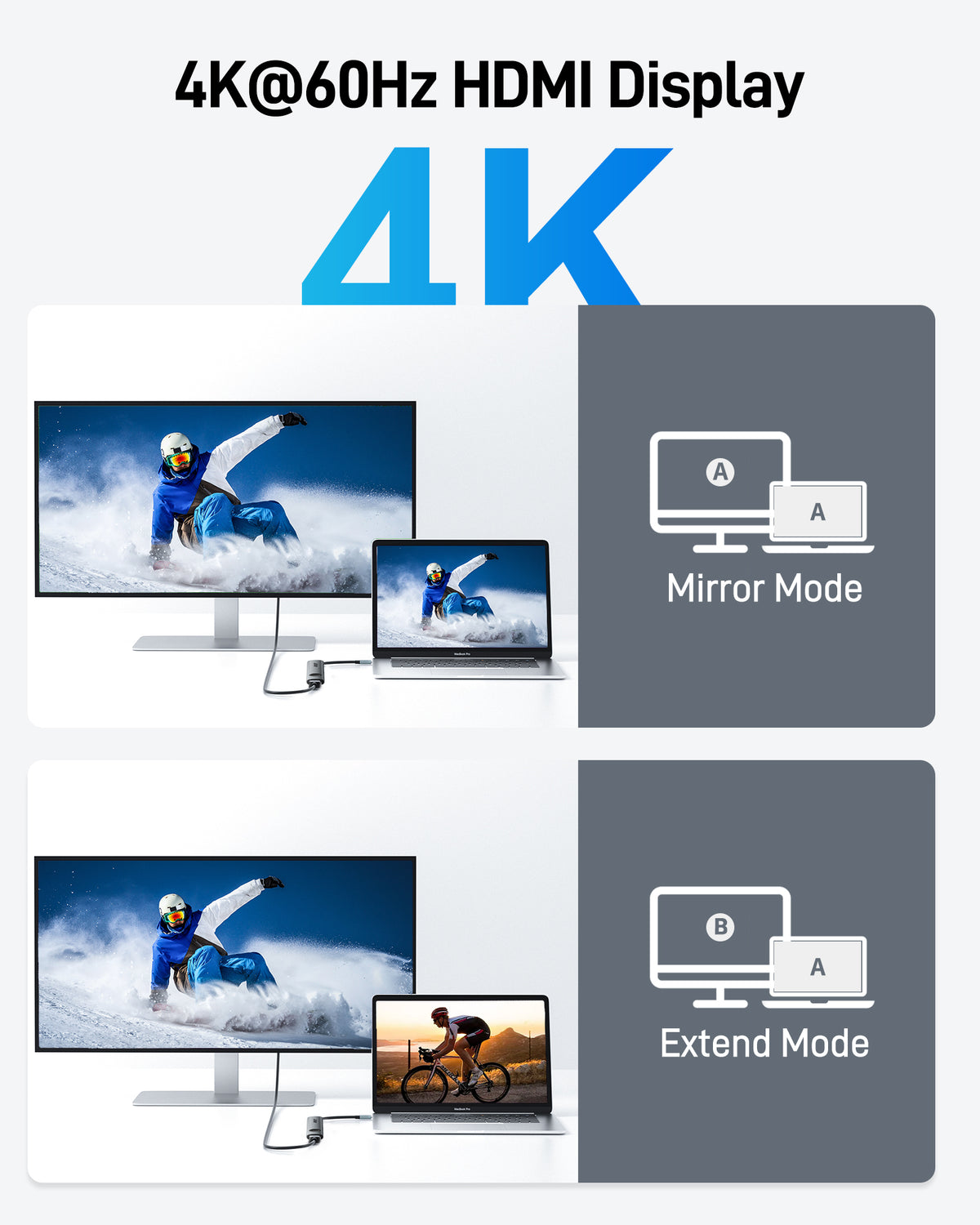
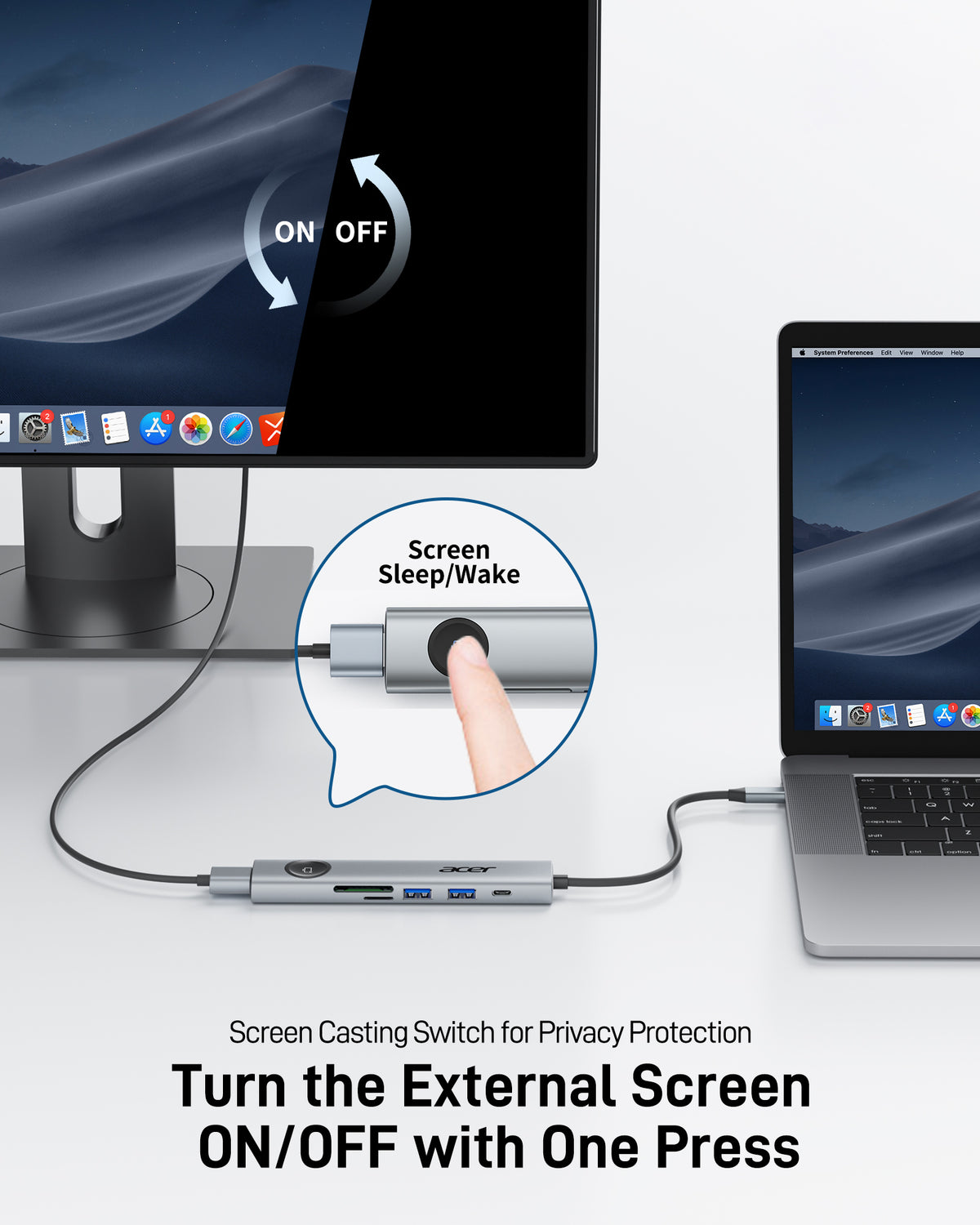
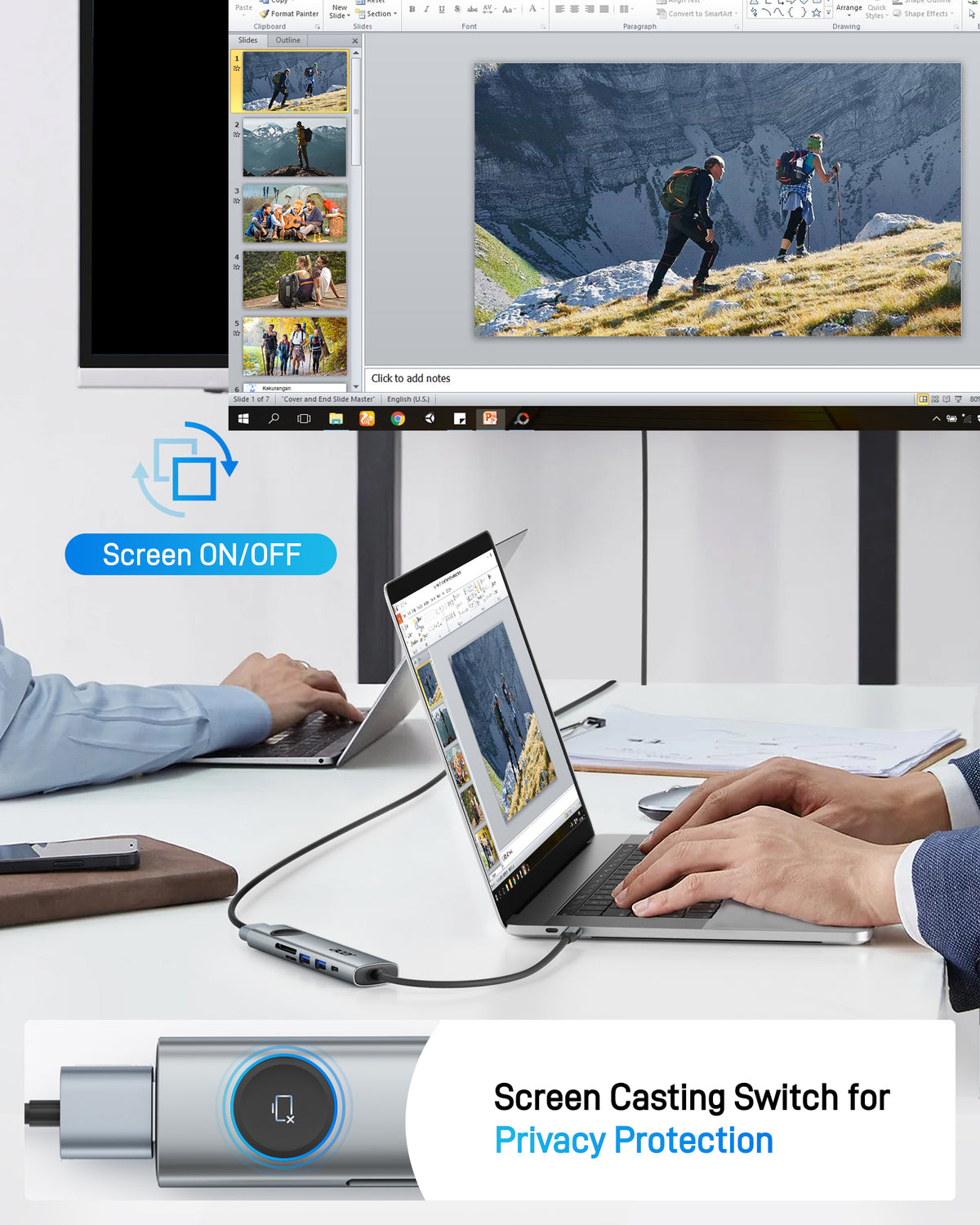
Get the most out of your new 4K TV. Supports Ultra High Definition video resolution up to 4K@60Hz. Backward compatible with 1080P, 1080i, & 720P. Optimize your productivity with Extended Desktop & Mirror modes on your HDMI-equipped monitor.
-
USB 3.0 + USB 2.0
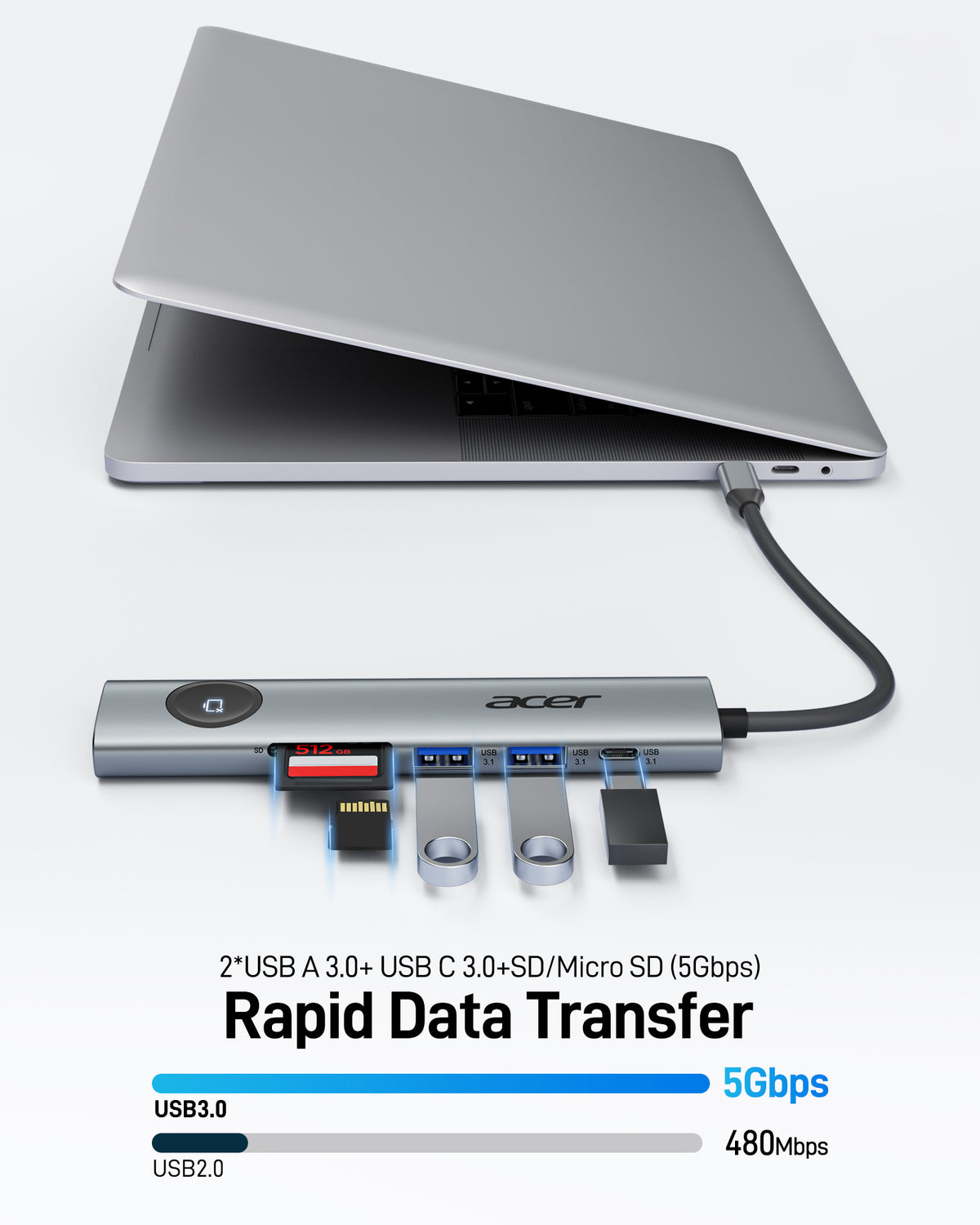
The two USB 3.0 ports and one USB-C ports quickly migrate your data from your old MacBook to your new MacBook with 5Gbps super speed. Allows you to use a backup hard drive, a flash drive, & peripherals simultaneously. Easily transfer photos, download high-resolution videos, or back up files.
-
100W Power Delivery
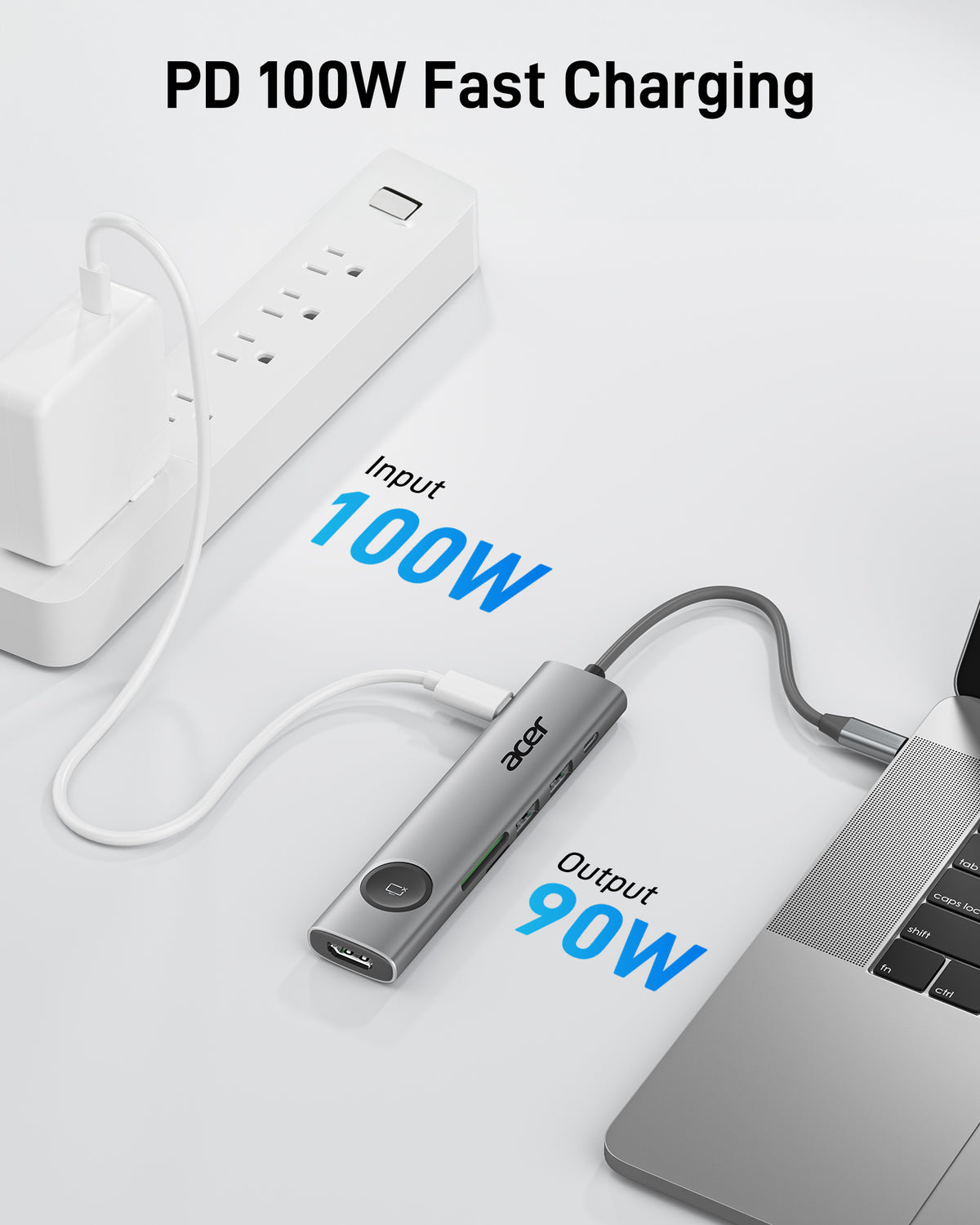
Delivers up to 100W of safe and rapid charge for the latest USB-C laptops/ smartphones/tablets. Achieve max charge rate of your MacBook Pro 16” (with Apple 96W charger.)
-
High-Speed Dual SD Card Readers
Reliably transfer high-resolution photos from your Camera/GoPro to your USB-C/Thunderbolt 3 devices for editing or backup. Full UHS-I support for high-speed (104MB/s) throughput! Perfect for Photographer or Designer.
- Hardware Interface: HDMI, MicroSD, USB 3.0, USB Type C
- Additional Features: Fast Data Transfer, Plug and Play, Portable
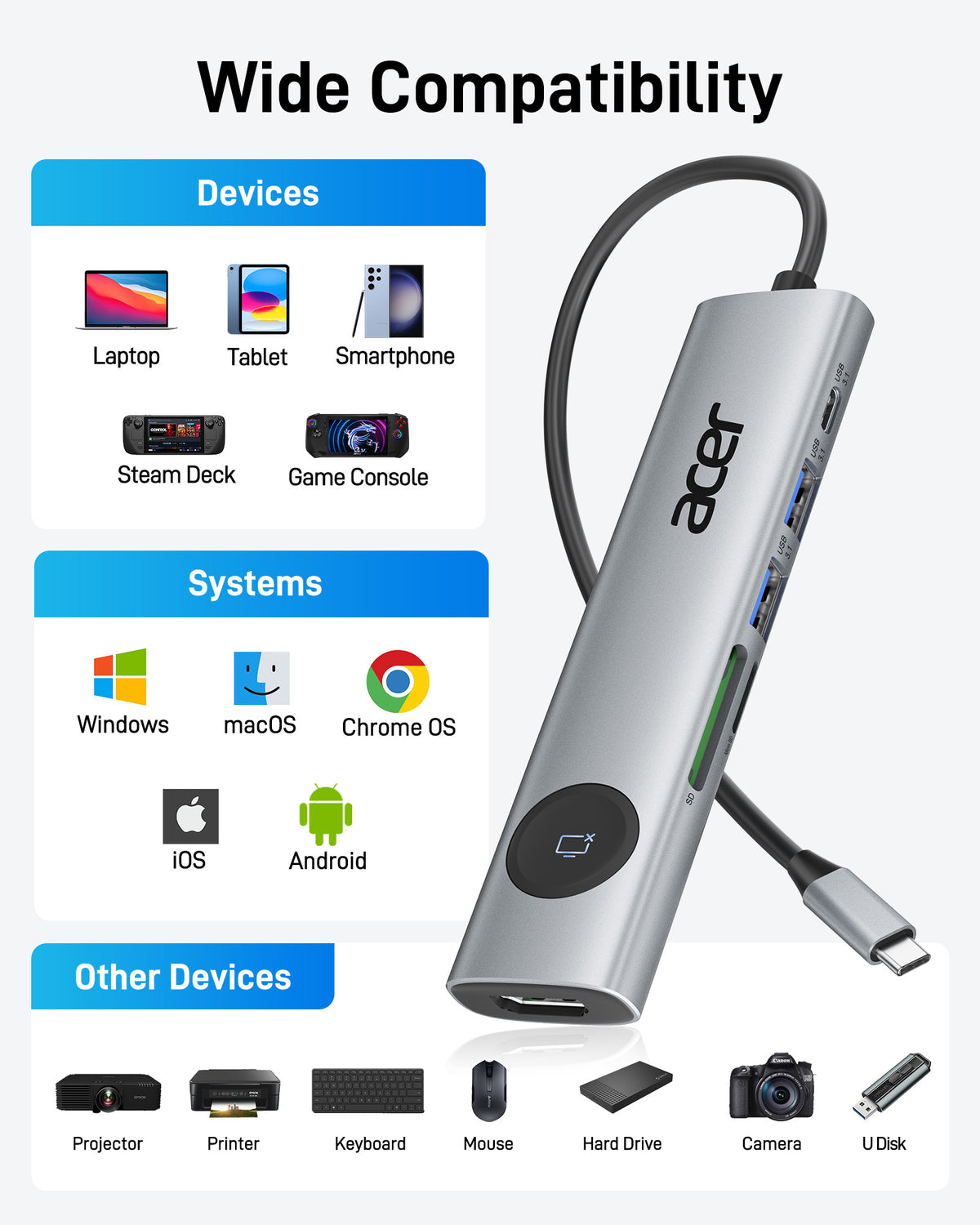
- Compatible Devices: Windows and macOS devices with DisplayPort Alternate Mode (DP Alt Mode)—Supporting display, charging, and data transfer. Including Acer, Dell, Lenovo, Surface, HP, ASUS, MacBook, Samsung laptops and smartphones, as well as accessories like mice and keyboards.
- Total USB Ports: 3
- Data Transfer Rate: 5 gigabits per second
- Number of Ports: 7
- Minimum Required Operating System Version: ChromeOS 134, Windows 10
- Operating System: Chrome OS, Linux, Windows, macOS
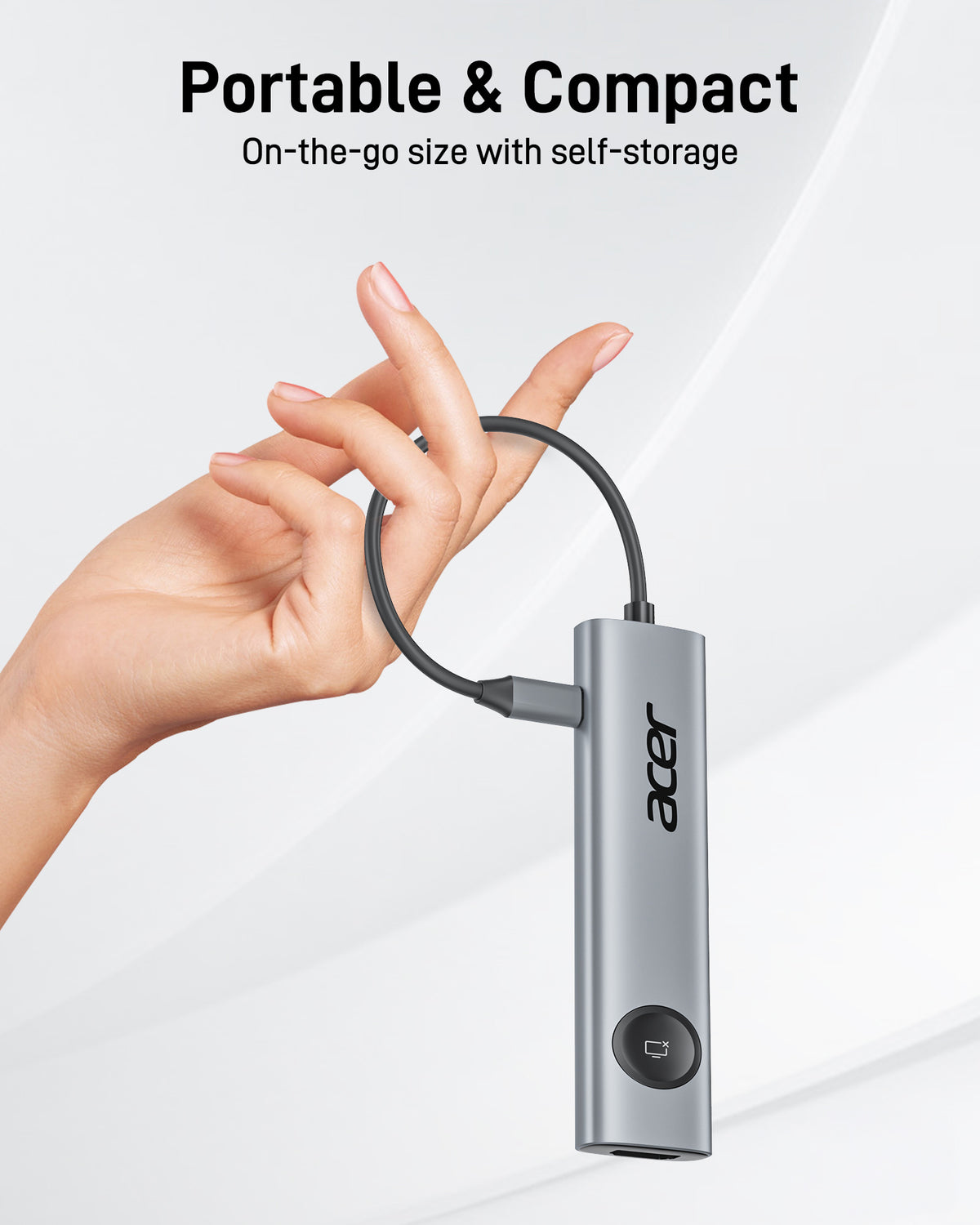
- Item Dimensions: 6.89"L × 3.74"W × 0.67"H
- Item Weight: 89g


FAQ
Why is my USB‑C hub multiport adapter not working or disconnecting intermittently?
- Test another cable – rule out a faulty USB‑C cable.
- Try another device – confirm the hub works with a different laptop/tablet.
- Clean the ports – remove dust or debris from both the hub and your device.
- Adjust resolution & refresh rate – try setting your external display to 1080p @ 60 Hz to reduce bandwidth load.
- Update drivers – ensure your graphics and system drivers are up to date.
- Check power supply – connect an external power adapter to the hub’s DC port to provide sufficient power for stable operation and video output.
How do I set mirror mode or extended mode?
- Windows: Press Win + P or go to Graphics Settings and choose Duplicate (mirror) or Extend.
- macOS: Click the Apple logo → System Preferences → Displays, then check or uncheck “Mirror Displays” to enable mirror mode or extended desktop mode.
Why is there no image output from HDMI after connecting?
- Make sure your laptop’s USB‑C port supports video output (DisplayPort Alt Mode).
- Check that the HDMI cable is firmly plugged in, and adjust your laptop’s screen resolution settings (try a lower resolution if needed).
- On your external monitor/TV, select the correct HDMI input source – some displays require manual source selection.
Why does my laptop get hot when it is connected to the USB‑C hub?
When the hub runs at full load for an extended period, its internal chip operates at high speed, which increases power consumption and generates heat. The maximum operating temperature is controlled within0 °C – 50 °C, which is normal and safe for the product. You can continue using it with confidence.
Why can’t my laptop be charged via the USB‑C port?
- Connect an external power source to the product’s DC input port first, then connect your laptop to the USB‑C port of the hub.
- Verify that your laptop’s USB‑C port actually supports charging (Power Delivery).
- Disconnect the hub from your laptop and reconnect it.
